Overview
VIDA uses IBM Aspera for Desktop to facilitate high-speed uploads and downloads of media files through Launchpad.
Aspera Desktop is required when transferring files into or out of VIDA Launchpad.
If you have not yet installed Aspera Desktop, please follow the installation instructions below.
Important: Most upload and download issues are caused by browser permissions. If your transfer does not start, please review the First-time Setup section below.
Installing Aspera for Desktop
- Download the latest version of Aspera for Desktop compatible with your operating system.
- Run the installer and follow the on-screen instructions.
- Once installation is complete, launch the application.
Once installed, Aspera Desktop should start automatically whenever a transfer is initiated through Launchpad.
First-time Setup
The first time you upload or download files using Launchpad, your browser may ask for permission to communicate with the Aspera for Desktop application.
These permissions must be allowed for transfers to work correctly.
Important: Enable "Apps on Device"
When using Google Chrome, the Apps on device permission must be enabled for Launchpad.
If this permission is disabled, Launchpad will be unable to detect Aspera for Desktop and you may receive an "Aspera App is not detected" error.
To verify this setting:
- Open Launchpad
- Click the site settings icon next to the address bar.
- Ensure Apps on device is enabled.
- Refresh the page.
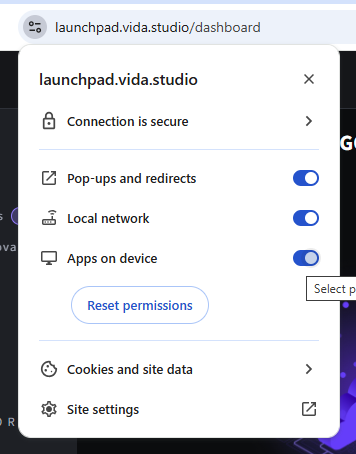
If you have previously blocked this permission, select Reset permissions and refresh the page.
Important: Allow Launchpad to Communicate with Aspera for Desktop
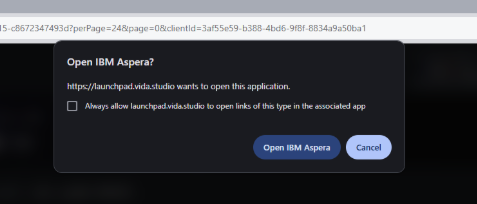
When starting an upload or download, Chrome may display a message similar to:
launchpad.vida.studio wants to access other apps and services on this device
You must select Allow.
Tip: Ticking the box in front of always allow launchpad.vida.studio to open links of this type in the associated app will skip this message in the future.
Selecting Block will prevent Launchpad from communicating with Aspera for Desktop and transfers may fail to start.
If you accidentally selected Block:
- Open Launchpad.
- Click the site settings icon in the address bar.
- Select Reset permissions.
- Refresh the page.
- Select Allow when prompted again.
Uploading Files
- Log in to Launchpad.
- Open or create the required Package
- Select Upload Files.
- Choose the files you wish to upload.
- Aspera Desktop will automatically launch and begin transferring files.
- Monitor progress using the Transfer Activity window.
Adjusting Aspera Desktop Settings
Most users will not need to modify any Aspera Desktop settings. However, there are a few settings that may occasionally need to be reviewed when troubleshooting transfer issues.
To access Aspera Desktop settings:
- Open Aspera Desktop.
- Select Preferences.
- Review or modify the required settings.
Changing the Download Location
To change where downloaded files are saved:
- Open Preferences.
- Navigate to Transfers.
- Select a new default download location.
Multi-session Transfers
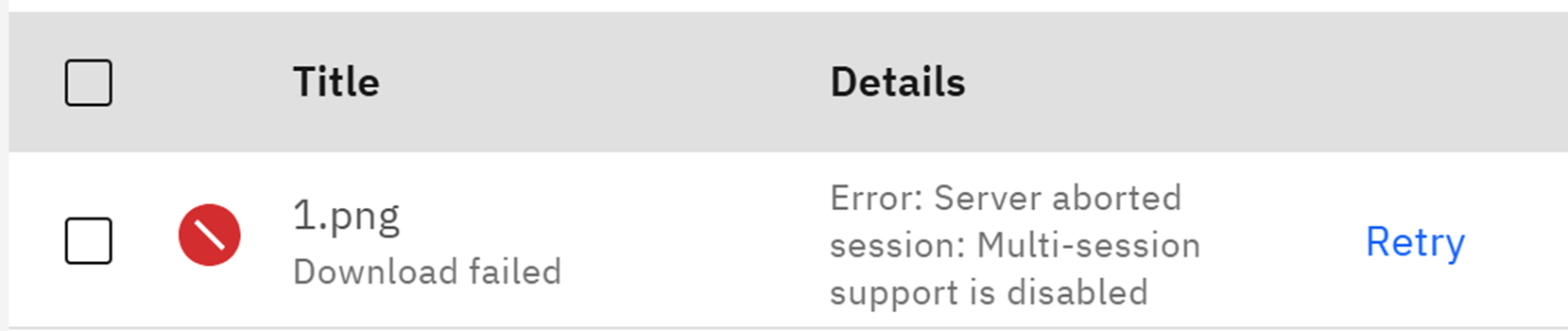
VIDA does not currently support multi-session transfers.
If you are experiencing transfer issues:
- Open Preferences.
- Navigate to Transfers.
- Ensure Enable multi-session is unticked.
- Retry the transfer.
Transfer Bandwidth
Aspera Desktop allows transfer bandwidth limits to be configured.
Unless instructed by VIDA Support, we recommend leaving these settings at their default values.
Incorrect bandwidth settings may impact transfer performance.
Resetting Aspera Desktop
If instructed by VIDA Support, you may be asked to reset your Aspera Desktop settings to their default values.
Please contact Support before making significant configuration changes.
Frequently Asked Questions
What is Aspera for Desktop?
Aspera for Desktop is a file transfer application used by VIDA to upload and download files efficiently. It enables the transfer of large media files more reliably than standard browser-based transfers.
Do I need to install Aspera for Desktop?
Yes. Aspera for Desktop is required to upload files through Launchpad and VIDA. Although browser downloads are available, we recommend using Aspera for Desktop for both uploads and downloads to ensure the best transfer performance and reliability.
Which browser should I use?
VIDA Launchpad works with modern web browsers; however, we recommend using the latest version of Google Chrome for the best experience.
If you encounter any transfer-related issues, please ensure your browser is up to date and that all required permissions have been granted.
Safari Users
Safari requires an Aspera browser extension to communicate with the IBM Aspera for Desktop App. The extension is installed automatically alongside the Desktop App but may require manual permission approval.
If uploads fail to start in Safari:
- Open Safari > Settings > Websites.
- Locate the Aspera extension.
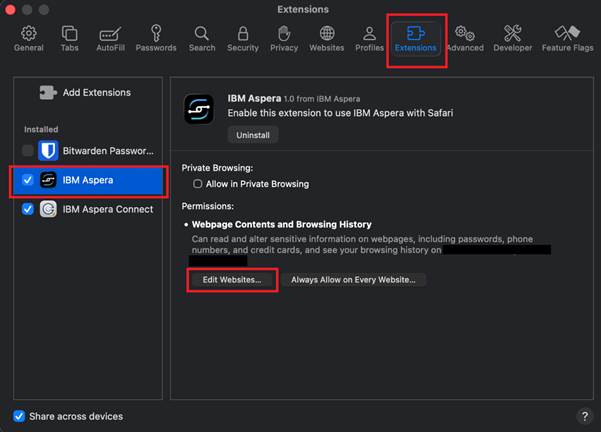
- Set your upload site (e.g. app.vida.studio) to Always Allow.
Note: If both IBM Aspera Desktop and Aspera Connect are installed, Safari may enable both extensions simultaneously, which can cause upload issues. Disabling the unused extension often resolves the problem.
I've installed Aspera for Desktop, but nothing happens when I click Upload?
Please check the following:
- Aspera for Desktop is running.
- The Apps on device permission is enabled.
- You selected Allow when Chrome requested access to other applications and services on your device.
- Your browser has been refreshed after installation.
If the issue persists, please contact VIDA Support.
I receive an "Aspera App is not detected" pop up.
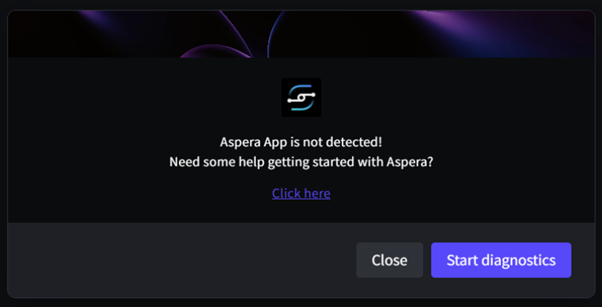
This message indicates that Launchpad is unable to communicate with the Aspera Desktop application installed on your device.
Please verify that:
- Aspera Desktop is installed.
- Aspera Desktop is running.
- Apps on device is enabled for Launchpad.
- You have not blocked browser access to local applications.
Refresh the page and try again.
My upload does not appear in the Transfer Activity window?
This usually indicates that Launchpad was unable to start the transfer.
Please:
- Refresh the page.
- Confirm Aspera for Desktop is running.
- Restart your browser.
- Retry the upload.
If the issue continues, please contact VIDA Support and include screenshots of the issue.
My transfer is stuck at 0%?
Please check that:
- The file is locally on the desktop and not on a Cloud drive
- The source file is not open in another application.
- You have permission to access the file.
- Your internet connection is stable.
Cancelling and restarting the transfer often resolves the issue.
Can I upload multiple files at once?
Yes. Launchpad supports uploading multiple files into multiple packages simultaneously.
What information should I provide when reporting an issue?
Please include:
- A full screengrab of Launchpad showing the error.
- A screenshot of the Transfer Activity window.
- Your browser name and version.
- Your operating system (Windows or macOS).
- The file name and approximate file size.
- The date and time (Incl your timezone) when the issue occurred.
This information helps the VIDA Support Team investigate more quickly.
Need Further Assistance?
Before contacting VIDA Support, please review the First-time Setup Section. Most transfer issues are caused by browser permissions preventing Launchpad from communicating with the Aspera for Desktop App. If you continue to experience issues with Aspera for Desktop, please contact the VIDA Support Team and provide as much information as possible regarding the issue encountered.

Was this article helpful?
That’s Great!
Thank you for your feedback
Sorry! We couldn't be helpful
Thank you for your feedback
Feedback sent
We appreciate your effort and will try to fix the article