Before you can log in to VIDA, your account must first be created by your organisation or the VIDA team. Once your account has been set up, you'll receive a notification informing you, your account has been created.
To log in, please visit app.vida.studio/login, enter your full email address, and click Login.
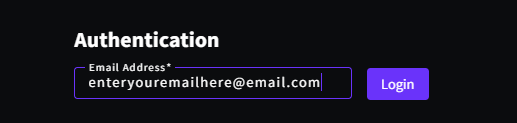
A secure sign-in link will then be sent to your email address, allowing you to access the platform.
Important: Before you can access the platform, you'll need to complete the initial login process and set up Two-Factor Authentication (2FA) on your account.
We've put together a step-by-step guide to walk you through the process:
First-Time Login to VIDA: Setting Up Two-Factor Authentication (2FA)
Frequently Asked Questions
I can't log in to VIDA. What should I check first?
Before attempting to log in, make sure your account has been created by your organisation or the VIDA team. If you're unsure, contact your administrator or the VIDA Support team.
I didn't receive my sign-in email. What should I do?
First, check your Spam or Junk folder. If the email isn't there, ensure you've entered the correct email address. f you're still unable to locate the email, contact the VIDA Support team. In some organisations, email security policies may delay or modify authentication emails.
Do I need a password to log in?
No. VIDA uses passwordless authentication. Instead of entering a password, you'll receive a secure sign-in link by email each time you log in.
Who do I contact if I'm still having trouble logging in?
If you're unable to log in after following the steps in this guide:
- Contact your organization's System Administrator to confirm that your VIDA account has been created and that your access has been configured correctly.
- If the issue persists, contact the VIDA Support Team.
To help us investigate, please include:
- The email address you're trying to log in with.
- A screenshot of any error message or the page where you're experiencing the issue.
- The web browser you're using.
- Whether you're accessing VIDA from a corporate network or managed device.
Was this article helpful?
That’s Great!
Thank you for your feedback
Sorry! We couldn't be helpful
Thank you for your feedback
Feedback sent
We appreciate your effort and will try to fix the article