
VIDA’s dedicated Support Team can be contacted directly through VIDA. This is available to Super Users and users with specific rights. If you want to discuss who in your team should have access to VIDA Support then you can raise a support query with us. Read on to find out how to make the most of our support portal and communicate your issues and requests in the most efficient manner.
Accessing the Support Portal
On the left-hand side of VIDA, you will see the menu where the support button is. Clicking this Launches the Support Portal. If you do not have this button available, please contact support.
The Support Portal
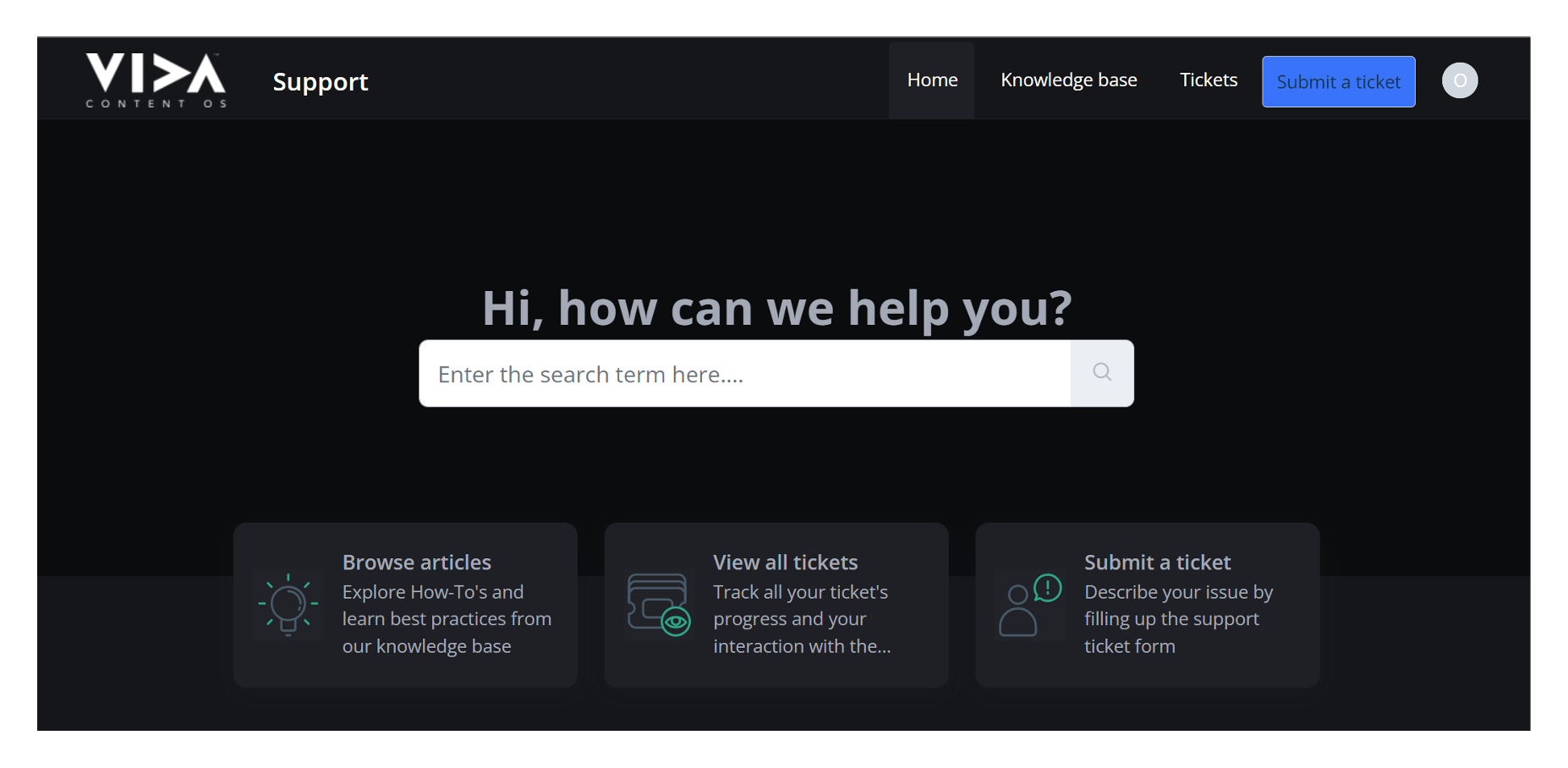
The Support portal is your main stop for interacting with the Support Team and can aid your communication with the wider VIDA group. Not sure if you should contact support or who this is for? If in doubt, raise a ticket!
Logging In
The support portal is a separate tool from VIDA so you will need to log in to take full benefit of the resources and ticket tracking in the portal. The portal supports Single Sign On via Google and email magic links. If it's your first time using the support portal you can simply raise a ticket without logging in.
Tips and Considerations before raising a ticket:
Have you checked the Knowledge Base?

The knowledge base is a great place to check before you contact support. We have a number of articles there that may have the solution you are looking for. Don't see the guide you are looking for? You can ask for support to create it.
Have you checked existing tickets?
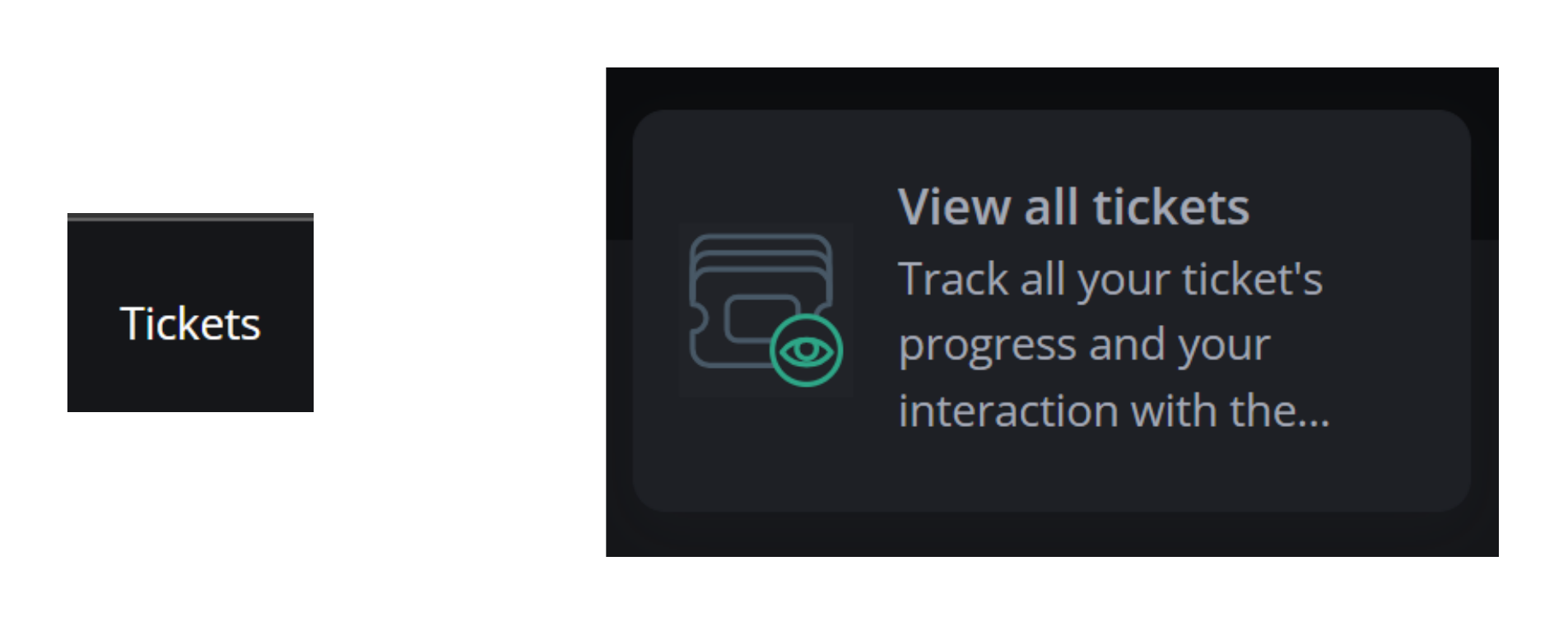 You may have raised multiple tickets or have access to your team's tickets. You can search tickets for subject, asset, and order IDs.
Still need to raise a ticket? Click on 'Submit a ticket'
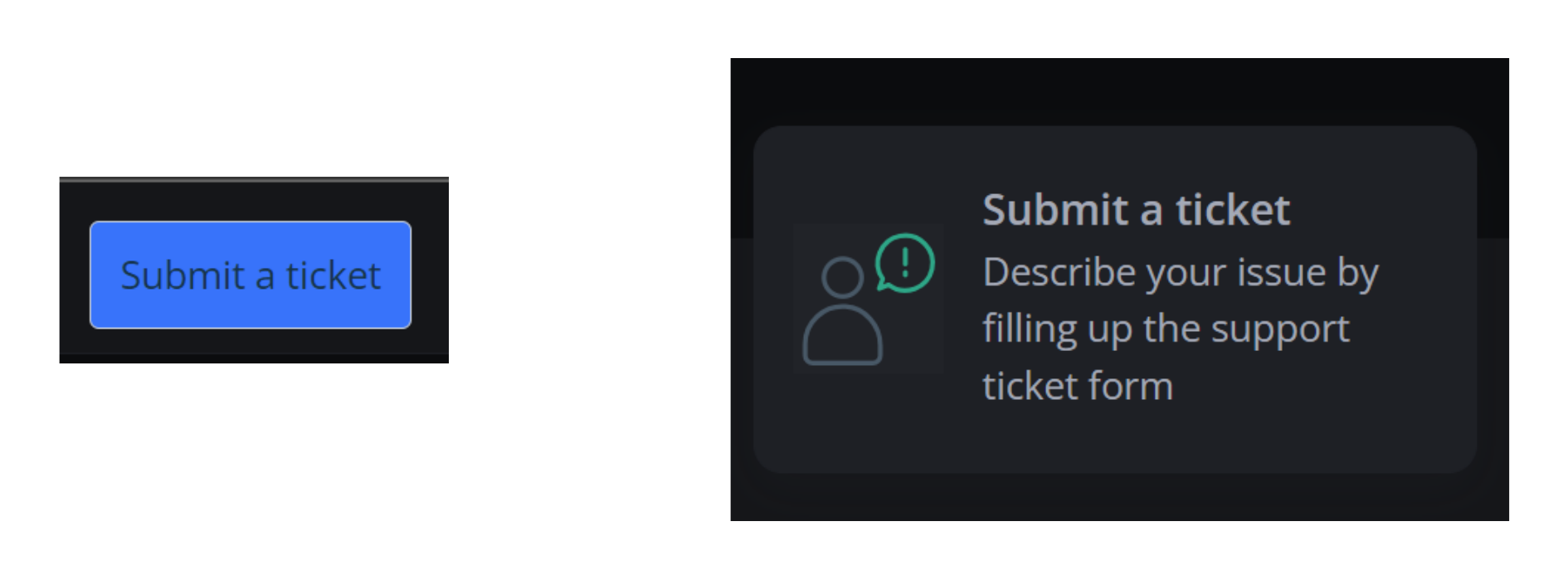
Clicking Submit a ticket takes you to the ticket form.
Submitting a ticket

Request Type
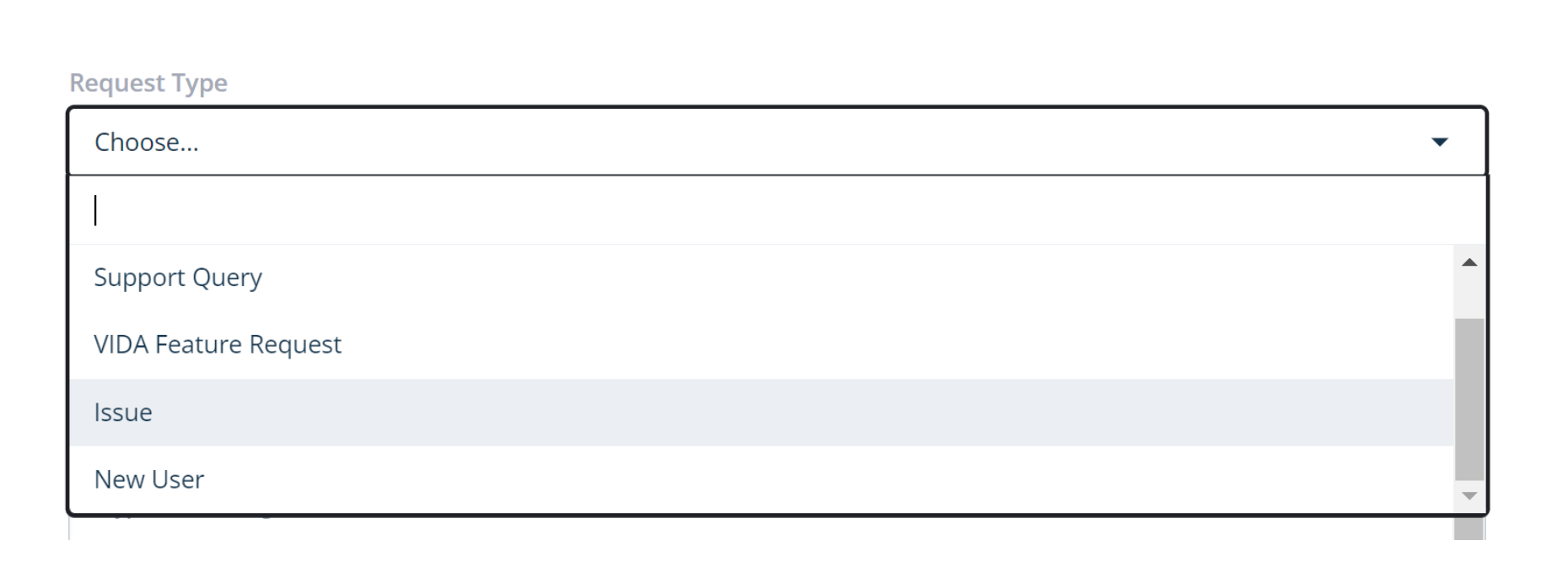
To help us triage your request as quickly and efficiently as possible we need to know what type of request you are raising with the support team. If you suspect that something is not working as expected in VIDA then please select Issue. You can select New Users if you would like a new user to be created. If you need information from support such as assistance with a query, documentation or general feedback select Support Query. If you have an idea for functionality or an improvement in VIDA you can select VIDA Feature Request. If you have an action or query for VIDA's library team please choose Library Request.
Title

Title is a required field and should be used to summarise the headline of your issue or request. Please try to voice generic terms such as "broken", "not right", "not working" etc. If you are referring to a specific order or asset, including the order number/asset ID may be helpful.
Describing the Issue
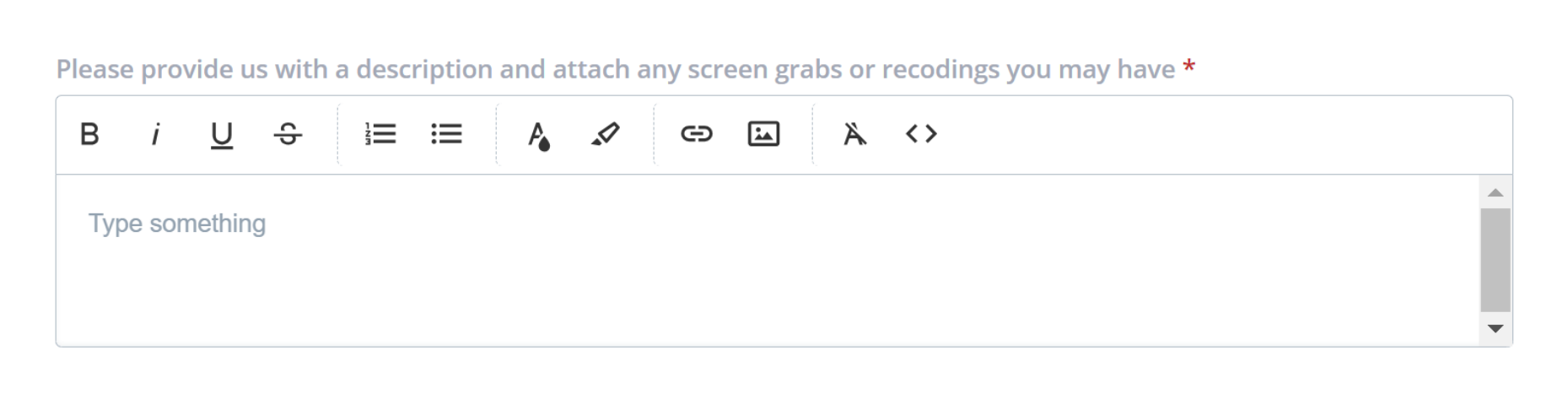
The best possible way to help us is to provide us with a screen recording of you performing the actions that resulted in your issue.
Please refrain from addressing a ticket to a team or individual. Multiple people might be able to help you and waiting for a specific individual who was addressed could delay your ticket resolution.
Product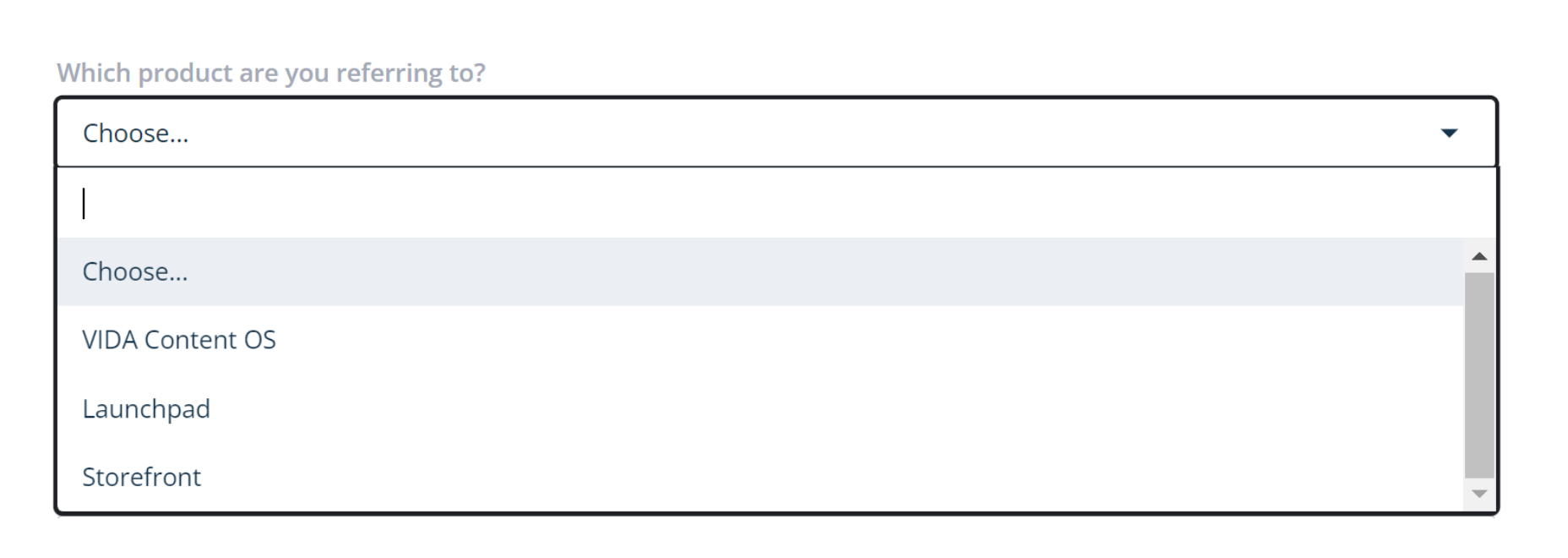
Please let us know if you are reporting an issue, query, support request, etc which product this is for. For example, a new user may be for Launchpad, Storefront, Or VIDA.
Priority
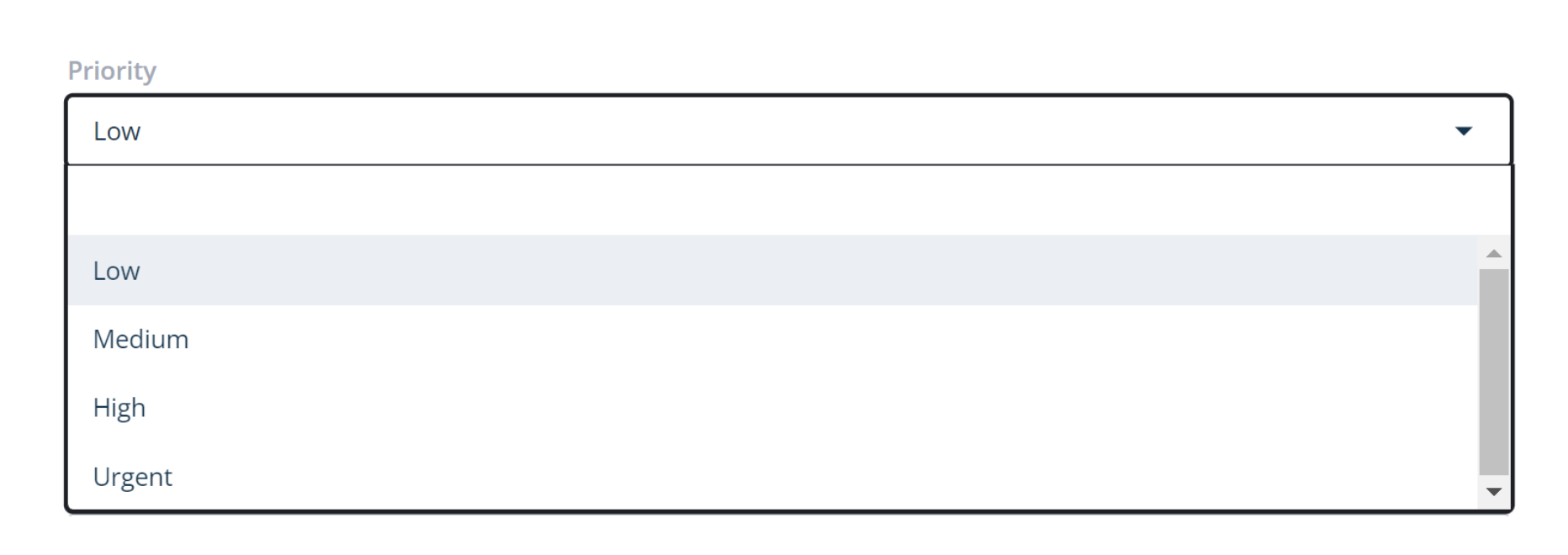
To effectively triage requests is helpful to understand the priority. Please see the definitions of each prioirty state as a guide:
Low - This is the default for all mail requests and is specifically designed to encourage users to use the portal so we can capture as much information as possible. Low priority should be for change requests, reporting, and general information requests.
Medium - Standard for requests that are having an impact on work but are not blocking operational or project deadlines. For example new user requests, user account changes, etc.
High - This should be used in circumstances where operational or project work is blocked. Deliveries/deadlines are impacted.
Urgent - Please remember that this is an Automatic Escalation. Support team member gets notified even out of hours. Resources will be taken away from high-priority items to look at urgent issues. Urgent should be reserved for extreme instances such as an entire department being unable to use VIDA. If an item that is raised as urgent is not deemed urgent then the priority may be changed to a lower state.
Browser
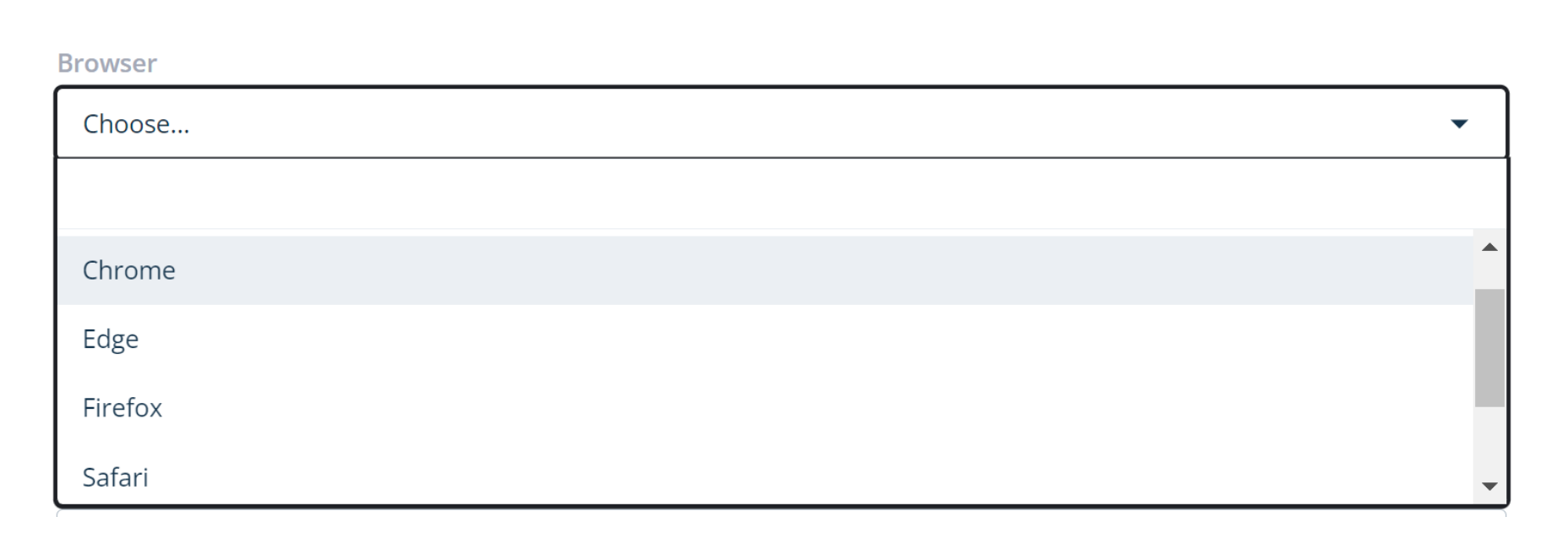
VIDA Works best in Google Chrome but users sometimes prefer to use what they are used to. Please let us know what browser you are using so we can replicate your issue exactly.
Device Type
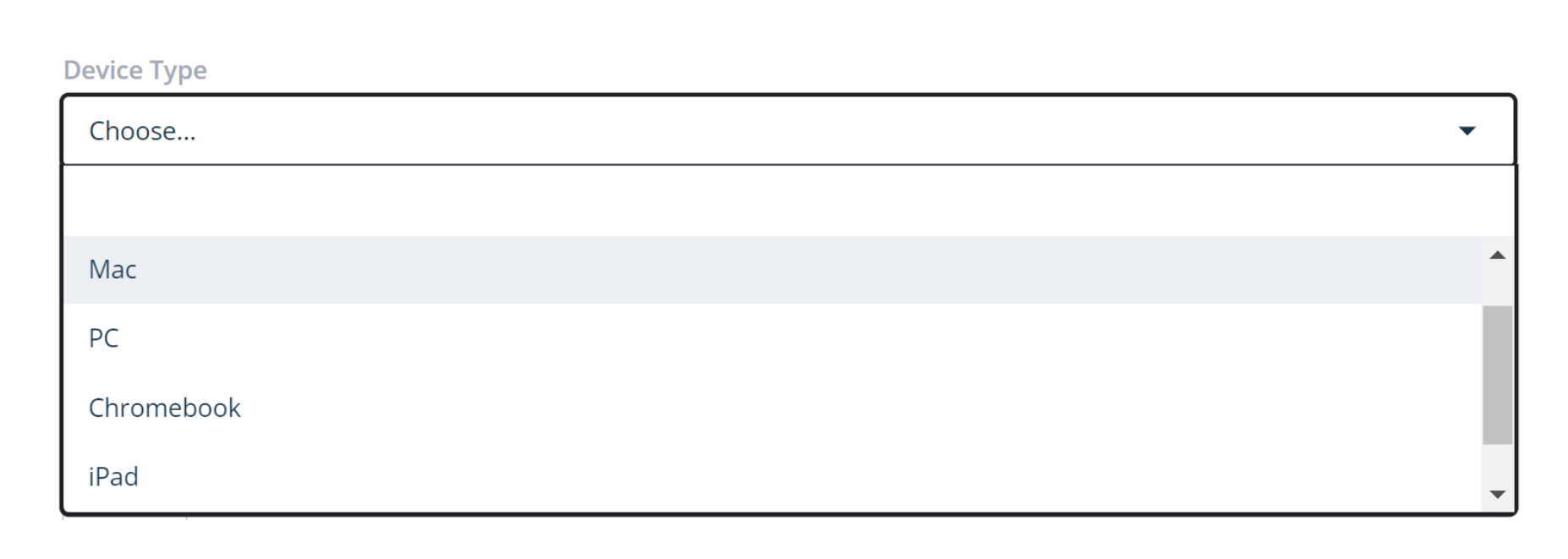
There are a lot of devices in the world and VIDA can even work on your phone. Please confirm the device so we can replicate your issue exactly.
Issue's First occurrence
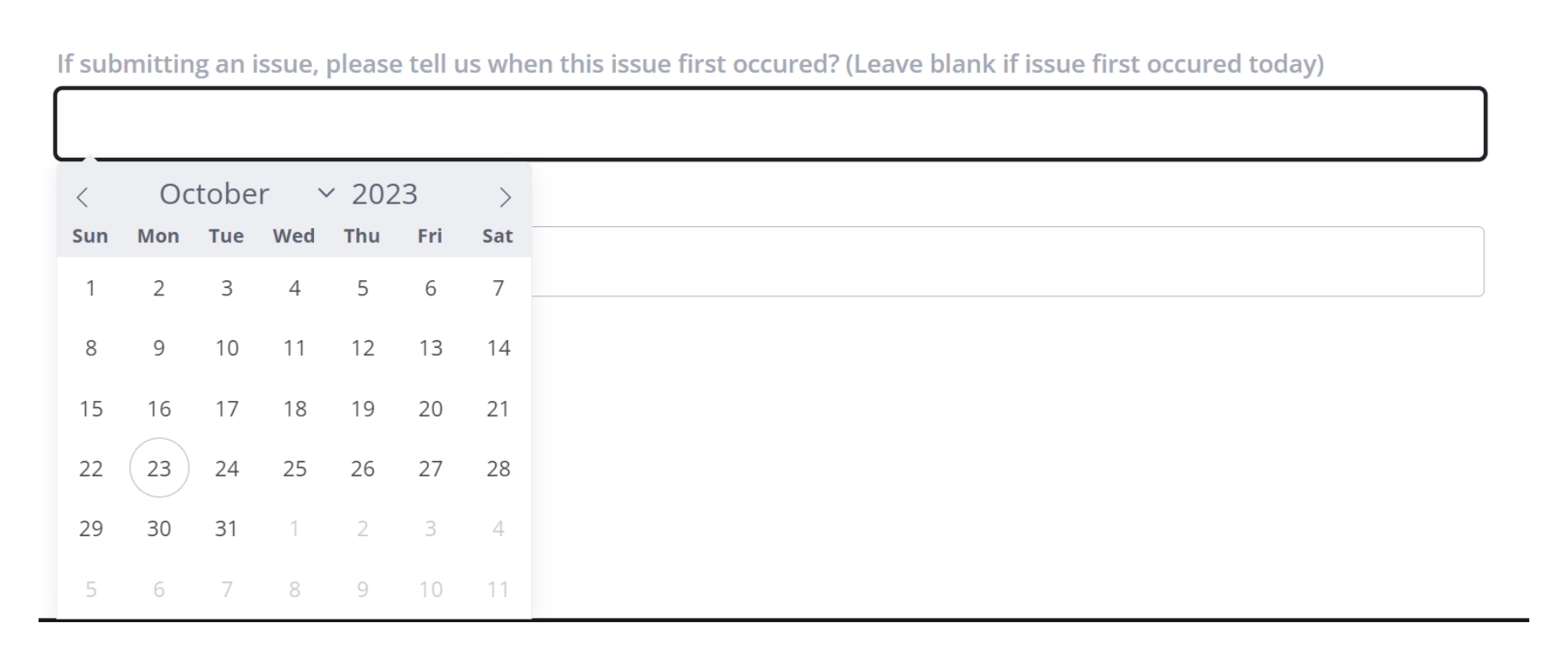
You may be raising this issue immediately after experiencing it, you may have an issue that first appeared a few days ago. When reporting an issue please flag the moment this issue first occurred. If you are reporting anything else please fill in the date of your request. Your ticket will have a created date assigned so this field is to tell us when something first happened.
User's Email Address

The contact is the person that this ticket is on behalf of. If this is genuinely an issue for you then your name needs to go here. If you are raising this item on behalf of a customer/another user then their name must go in the contact field. This gives Support and Product the ability to engage with the person who has the issue or request. This will speed up clarification of the issue and resolution. Please do not accidentally insert yourself into the communication chain.
CCing
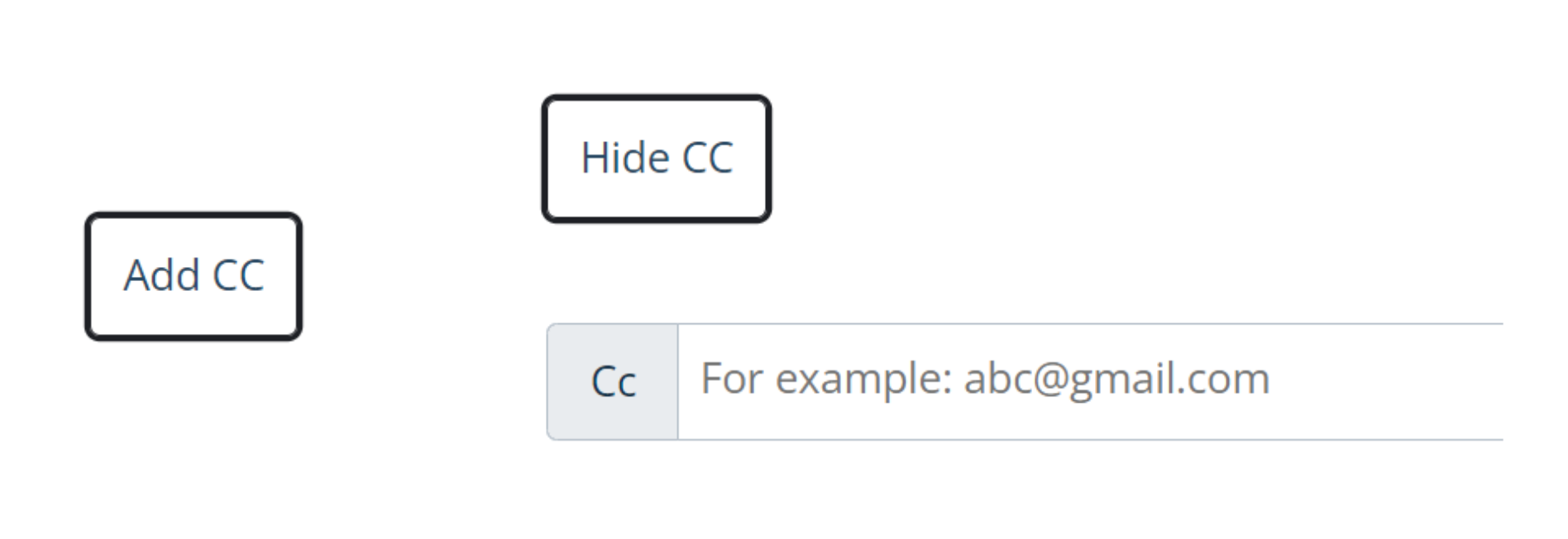
Clicking the Add CC enables you to add anyone to your ticket so they will receive any updates. Please remember that your daily vida contacts are agents in Freshdesk and are notified automatically about your ticket
Adding Attachments
If you have any supporting Excels, emails, or any other document you can attach these at the bottom of the form by selecting Attachment. Please remember that the best way to attach screen grabs is in the description as then it will be part of the body of your ticket and not separate. Attachmentments cannot exceed 20 MB when submitting a ticket. If you have a larger attachment then, please upload this to a shareable location and supply us with the link.
Now you have provided all the required info you can click Submit. Please keep in mind that replying to a ticket will automatically reopen a ticket even if it's closed and therefore gets triaged all over again.

Was this article helpful?
That’s Great!
Thank you for your feedback
Sorry! We couldn't be helpful
Thank you for your feedback
Feedback sent
We appreciate your effort and will try to fix the article