Managing My User Settings
Access your VIDA user menu to switch themes, replay the tour guide, and manage your profile, security, and system settings.
Overview
Your VIDA user preferences and profile details are managed from the user menu, accessed via your user name and icon in the top-right corner of the screen.
From this menu you can switch between VIDA products, toggle between the Light and Dark theme, replay the Tour guide, and open your Settings to manage your profile, security, and system preferences.
Step-by-Step Instructions
To access any of the settings below, first open your user menu:
- Log in to VIDA.
- In the top-right corner, locate your user name and icon.
- Select the dropdown arrow next to your user name to open the user menu.
The user menu opens, showing (in order) Light theme, Tour guide, Settings, Switch App, and Logout.
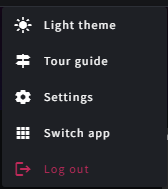
Step 1 — Switch between Dark and Light theme
VIDA defaults to the Dark theme the first time you log in. Select Light theme in the user menu to toggle it on or off.

Once toggled on, the same option switches to Dark theme so you can switch back.

Step 2 — Replay the Tour guide
Select Tour guide in the user menu for a walkthrough of VIDA's first steps, including your user profile settings.

Tour guide is currently available in VIDA only.
Step 3 — Open your Settings

Select Settings in the user menu to manage your Profile Settings, Security Settings, and System Settings.
Profile Settings
Manage your contact details.
Security Settings
From Profile Settings, select Security Settings to manage how you sign in to your account.
Changing your security settings requires a fresh login. If you haven't logged in recently, VIDA displays a yellow banner reading "Changing security settings requires a fresh login. Please log out and log in again." Select the banner, then log out and log back in to unlock your security settings.
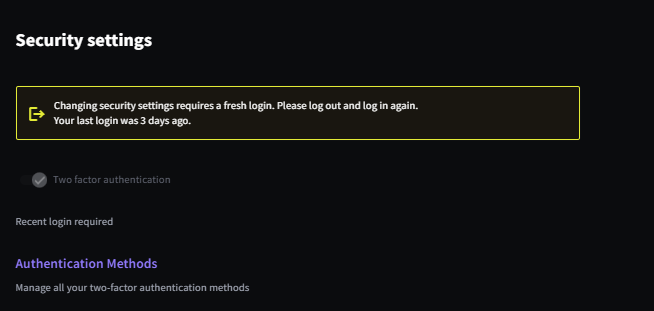
Once unlocked, use Authentication Methods to manage all your two-factor authentication methods. Select Add authentication method to add an additional method alongside your existing one.
VIDA supports three two-factor authentication methods:
- Authenticator App — a six-digit code generated by an app on your phone. See First-Time Login to VIDA: Setting Up Two-Factor Authentication (2FA) for the full setup process.
- SMS — a code sent to your mobile phone by text message.
- Passkey — a passwordless sign-in method tied to your device.
We recommend setting up the Authenticator App rather than SMS. Step-by-step instructions for setting up SMS and Passkey will be available soon.
System Settings
Within the same Settings menu, select System Settings to manage your display preferences:
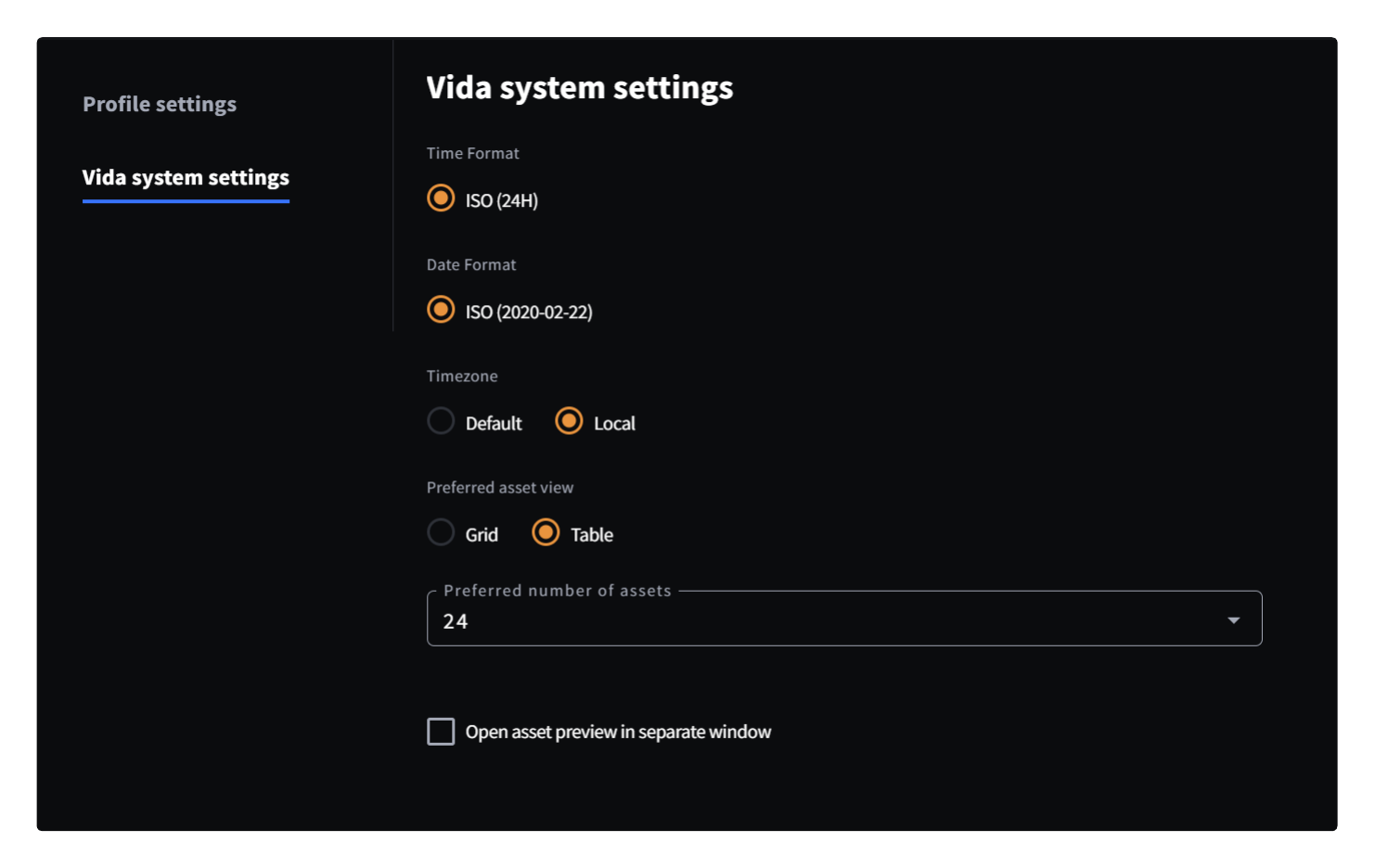
- Choose your time format.
- Choose your date format.
- Choose between your default timezone or your local timezone.
- Choose your preferred asset view: Grid or Table.
- Set your preferred number of assets shown per page.
- Choose whether asset previews open in a separate window.
Step 4 — Switch between products
Select Switch App in the user menu, then choose the product you want to open from the list — without typing the URL for each product.
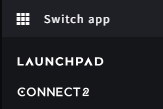
Switch App only appears if you have access to more than one VIDA product (VIDA, Launchpad, or Connect 2). If you only have access to one, this option won't be shown.
Step 5 — Log out of VIDA
Select Logout in the user menu to end your session and return to the login screen.
Troubleshooting & FAQs
Profile Settings covers your contact details. Security Settings, found within Profile Settings, covers how you sign in, including your two-factor authentication methods. System Settings covers display preferences, such as timezone, thumbnail grid, results per page, and whether assets open in a separate window.
Security Settings shows Recent login required and a yellow banner if you haven't logged in recently. Select the banner, log out, and log back in — your Authentication Methods will then be editable.
Switch App only appears in the user menu if you have access to more than one VIDA product (VIDA, Launchpad, or Connect 2). If you only have access to one product, this option won't be shown. Contact your VIDA administrator if you believe you should have access to additional products.
Open the user menu and select Light theme again to toggle it off and return to the Dark theme.
Yes. Select Tour guide from the user menu at any time to go through it again. Tour guide is currently available in VIDA only.
2FA is managed from Settings → Profile Settings → Security Settings → Authentication Methods. See First-Time Login to VIDA: Setting Up Two-Factor Authentication (2FA) for the full setup process.
Related Articles
Was this article helpful?
That’s Great!
Thank you for your feedback
Sorry! We couldn't be helpful
Thank you for your feedback
Feedback sent
We appreciate your effort and will try to fix the article