Clearing Cache and Cookies
Learn how to clear cached data and cookies for VIDA, Connect 2, Launchpad or Storefront depending on your browser, to resolve common display and sign-in issues.
Overview
If you're experiencing issues with VIDA, Connect 2, Launchpad or Storefront, clearing the cached data and cookies stored specifically for the affected website can often help.
The steps below remove data for the affected VIDA website only — you do not need to clear your entire browser history or cookies for other websites.
Browsers
Google Chrome
- Open the affected VIDA, Connect 2, Launchpad or Storefront website in Chrome.
- Click the site controls icon to the left of the address bar.

- Select Cookies and site data.
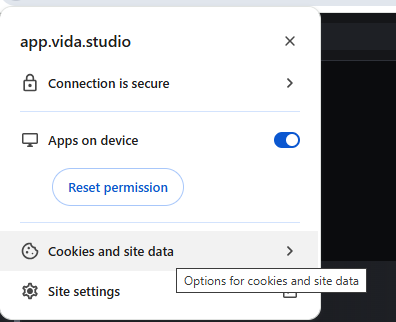
- Select Manage on-device site data.
- Delete the stored data associated with the website.
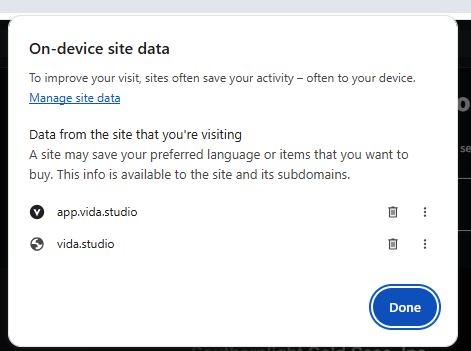
- Reload the page and sign in again if prompted.
Microsoft Edge
- Open the affected VIDA, Connect 2, Launchpad or Storefront website in Edge.
- Click the site information (padlock) icon to the left of the address bar.
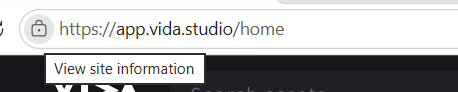
- Select Cookies and site data.
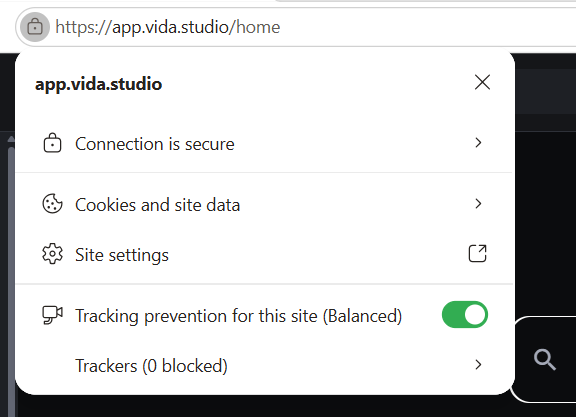
- Select cookies in use.
- Remove the stored data associated with the website and click Done.
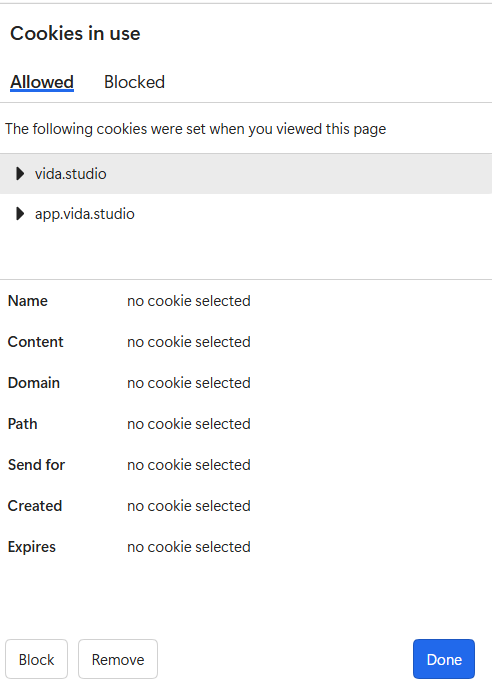
- Reload the page and sign in again if prompted.
Mozilla Firefox
- Open the affected VIDA, Connect 2, Launchpad or Storefront website in Firefox.
- Click the shield icon to the left of the address bar.
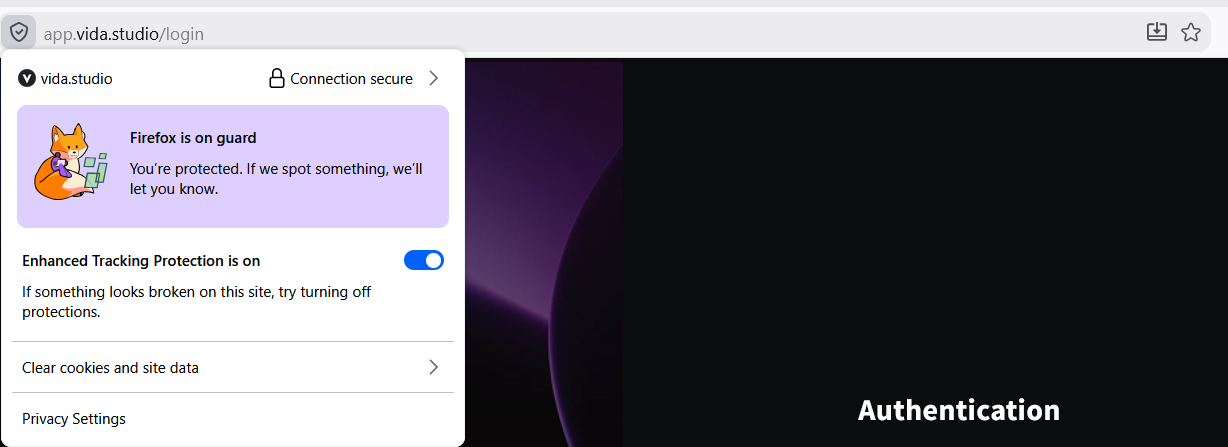
- Select Clear cookies and site data.
- Confirm by selecting Remove.
- Reload the page and sign in again if prompted.
Safari
- Open Safari.
- From the menu bar, select Safari → Settings.
- Select Privacy.
- Select Manage Website Data.
- Search for the affected VIDA, Connect 2, Launchpad or Storefront website.
- Select the relevant entry and click Remove.
- Select Done, then reload the website and sign in again if prompted.
Clearing cookies may sign you out of VIDA, Connect 2, Launchpad or Storefront. Simply sign back in after completing the steps.
Troubleshooting & FAQs
Please raise a Support ticket and let us know which application and browser you're using — see Completing the VIDA Support Ticket Form for a walkthrough of the ticket form.
Related Articles
Was this article helpful?
That’s Great!
Thank you for your feedback
Sorry! We couldn't be helpful
Thank you for your feedback
Feedback sent
We appreciate your effort and will try to fix the article