Work through the short welcome checklist the first time you sign in to VIDA, Connect 2, Storefront or Launchpad, so your account is secure and ready to use.
Overview
The first time you sign in, you see a Welcome page with a short checklist. It shows a few quick steps to get your account ready, and a progress bar that tells you how many you have completed.
Two steps are required: setting up Security and accepting the Terms & Conditions. The other steps are optional. You can complete them now, skip them, or come back to them later.
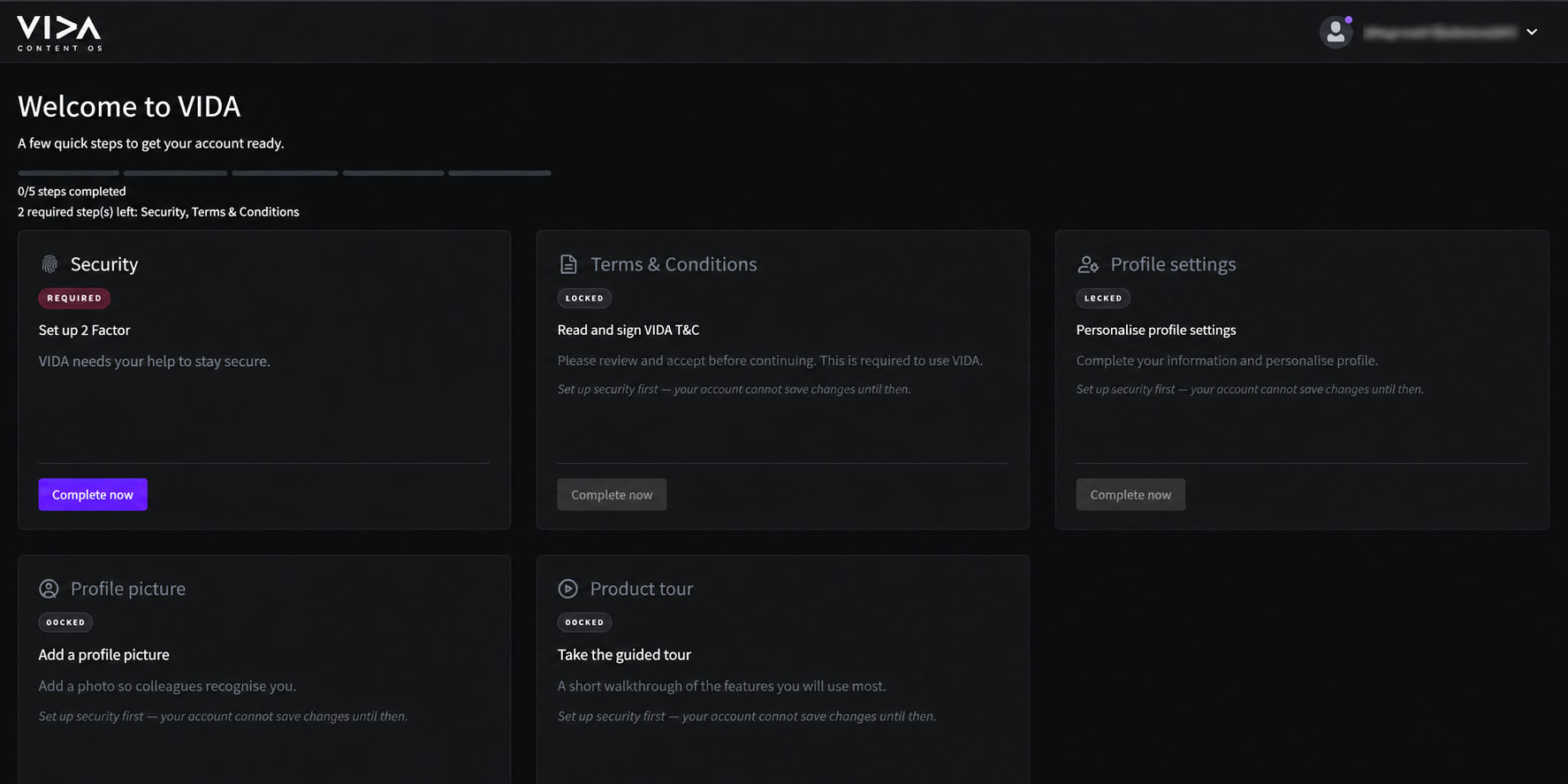
The same checklist appears in VIDA, Connect 2, Storefront and Launchpad. The only difference is that the Product tour is available in VIDA only, so the other products show one step fewer.
The Onboarding Steps
| Step | Required? | What you do | More help |
|---|---|---|---|
| Security | Yes | Set up two-factor authentication (2FA) to protect your account. | Setting Up 2FA Registering a Passkey |
| Terms & Conditions | Yes | Read and accept the Terms of Service and Privacy Policy. | Covered in this article. |
| Profile settings | No | Complete your information and personalise your profile. | Managing My User Settings |
| Profile picture | No | Add a photo so colleagues recognise you. | Covered in this article. |
| Product tour VIDA only | No | Take a short guided walkthrough of the features you will use most. | Managing My User Settings |
Complete Security first. The other steps stay locked until it is done, because your account cannot save changes until 2FA is set up.
Step-by-Step Instructions
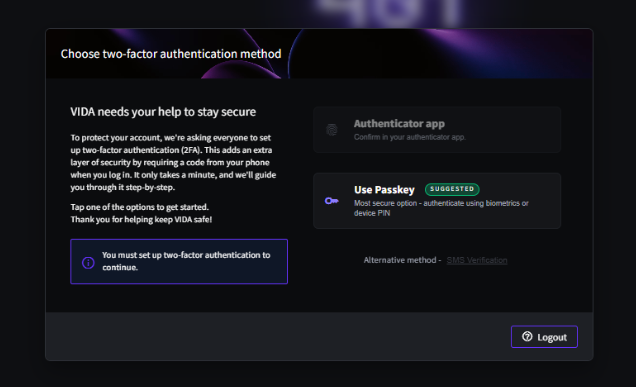
Step 1 — Set up Security
- On the Welcome page, find the Security step and click Complete now.
- Follow the on-screen instructions to set up 2FA. For a full walkthrough, see First-Time Login to VIDA: Setting Up Two-Factor Authentication (2FA).
- VIDA suggests a passkey, which lets you confirm with your device's fingerprint, face recognition or PIN instead of typing a code. You can choose an authenticator app instead. To set up a passkey, see Registering a Passkey for VIDA, Launchpad or Connect 2.
When Security is complete, the other steps unlock.
Step 2 — Accept the Terms & Conditions
- Click Complete now on the Terms & Conditions step.
- Read the Terms of Service and Privacy Policy.
- Tick I have read and agree to the Terms of Service and Privacy Policy, then confirm.
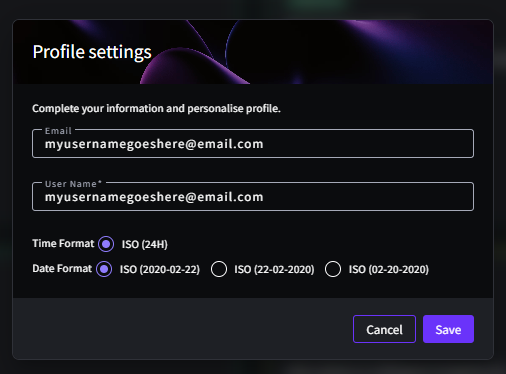
Step 3 — Personalise your profile (optional)
- Click Complete now on the Profile settings step.
- Check your Email and User Name, and choose your preferred Time Format and Date Format.
- Click Save.
Step 4 — Add a profile picture (optional)
- Click Complete now on the Profile picture step.
- Drop a photo into the window, or click Select file manually and choose one from your computer.
- Click Use this photo to confirm.
- If you would rather not add a photo now, click Skip for now.
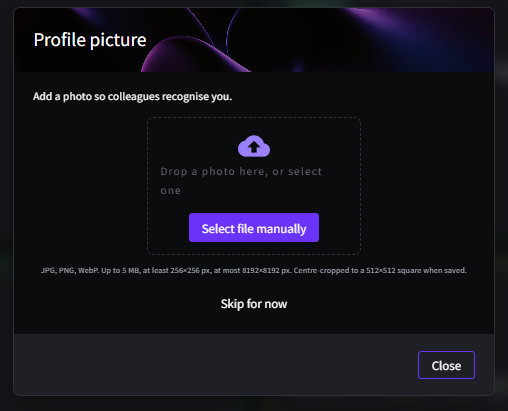
- JPG, PNG or WebP format.
- Up to 5 MB.
- At least 256 × 256 pixels, and no larger than 8192 × 8192 pixels.
- VIDA crops your photo to a centred 512 × 512 pixel square when you save it.
Step 5 — Take the Product tour (optional, VIDA only)
- Click Complete now on the Product tour step.
- Follow the guided walkthrough of VIDA's main features.
You can replay the tour at any time. See Managing My User Settings.
Step 6 — Continue to the application
When you finish, an Onboarding complete message appears. Choose one of two options:
- Continue takes you to the application.
- Back to onboarding returns you to the Welcome page, for example to revisit a step.
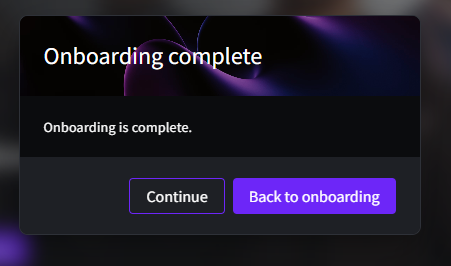
You do not have to finish the optional steps first. As soon as Security and Terms & Conditions are done, a Continue button appears at the bottom of the Welcome page, naming the application you are using, for example Continue to VIDA. Click it to carry on to the application.
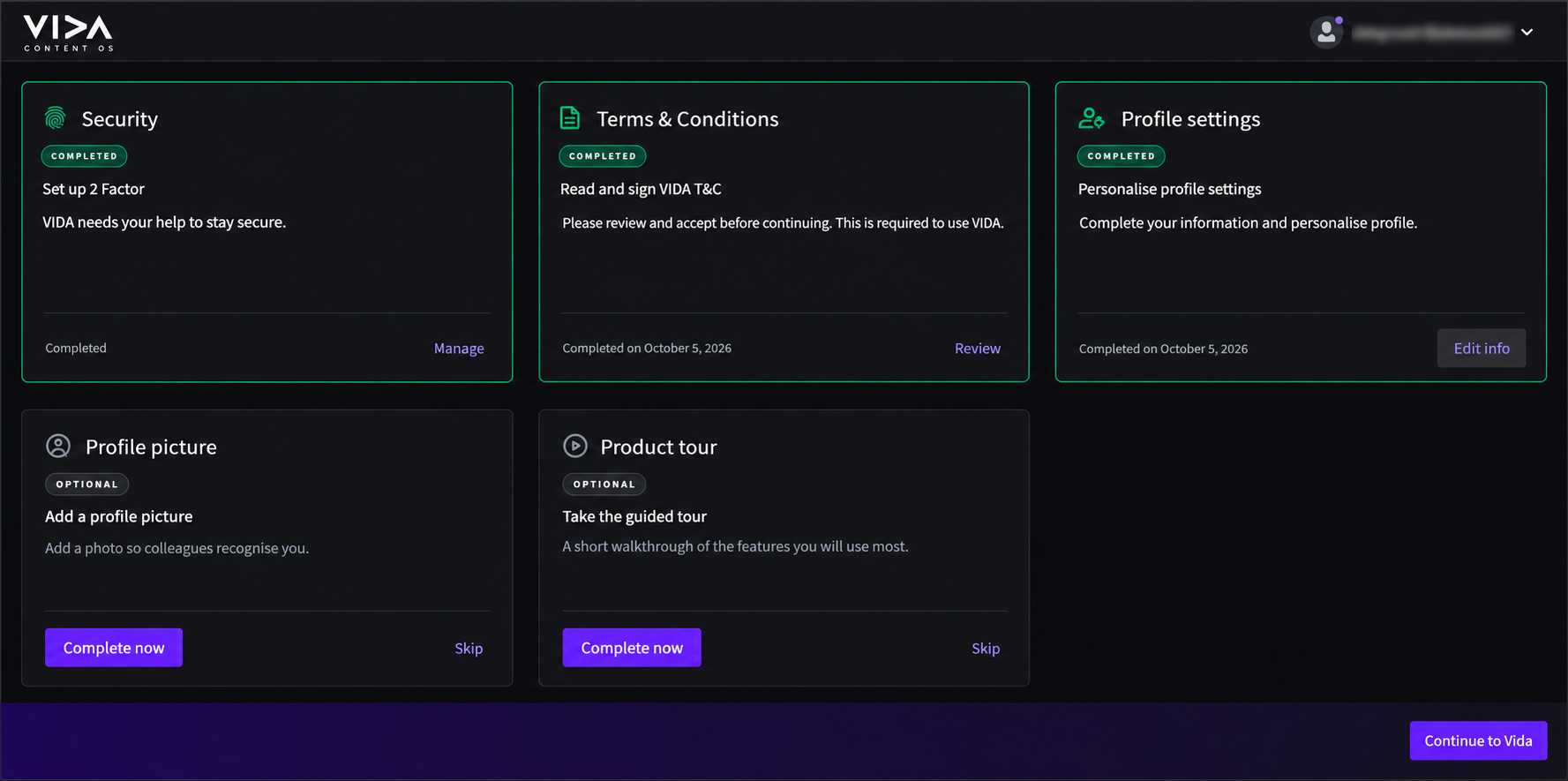
Each completed step is marked Completed and the progress bar fills. Your account is secure and you can use the application as normal.
Troubleshooting & FAQs
The other steps unlock only after you set up Security. Complete the Security step first and the rest become available.
You can skip the optional steps (Profile settings, Profile picture and Product tour). Security and Terms & Conditions are required, so you cannot skip them.
Open your user menu and select Onboarding. While steps are still open, it shows your progress, for example Onboarding (3/5 done).
Yes. Return to the Onboarding page from your user menu and click the step's action button. Completed steps also let you review or change what you entered, for example Edit info or Change photo.
Check that it is a JPG, PNG or WebP file, no larger than 5 MB, and at least 256 × 256 pixels. Then try again. If it still fails, choose a different image.
Sign out and sign in again, this time completing the second-factor prompt. Enrolling again will not fix this.
Related Articles
Was this article helpful?
That’s Great!
Thank you for your feedback
Sorry! We couldn't be helpful
Thank you for your feedback
Feedback sent
We appreciate your effort and will try to fix the article