Getting Started with Connect 2
Find your licensed content, browse a package, and download assets in Connect 2.
Overview
Connect 2 is where you access the content your organisation is licensed to use. Access is granted through licenses and rights contracts, so each title may only be available to you for a set period of time.
Rather than receiving everything in a package, Connect 2 lets you pick the specific assets you need. This article covers finding your licensed titles, browsing a package, and downloading assets.
Before You Begin
You'll need to log in and set up Two-Factor Authentication (2FA) before you can access Connect 2. See:
Step-by-Step Instructions
Step 1 — Find your licensed content
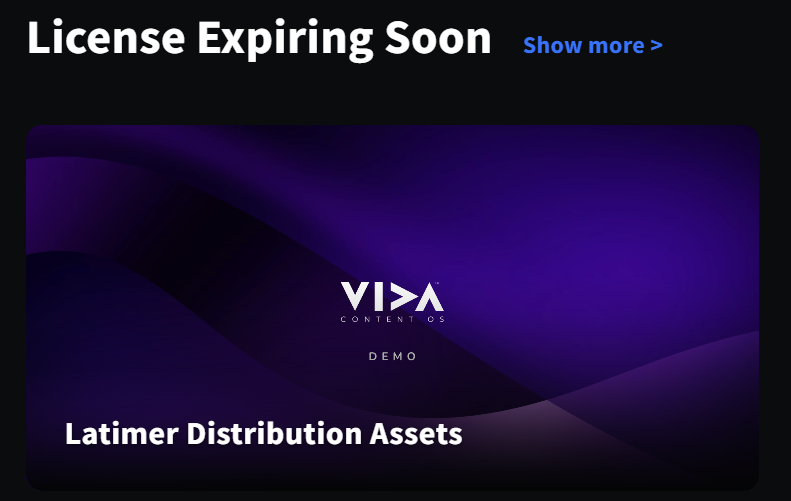
Once logged in, your home screen shows:
- Titles you're licensed to use.
- Which licenses are expiring soon.
To open a title, double-click its thumbnail.
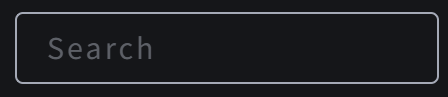
Or use the search bar at the top to find a package or title.
Step 2 — Browse a package
- A package may have one tab or multiple tabs at the top.
- Tabs are arranged according to the content owner's setup.
- Within a tab, assets may be organised into subfolders.
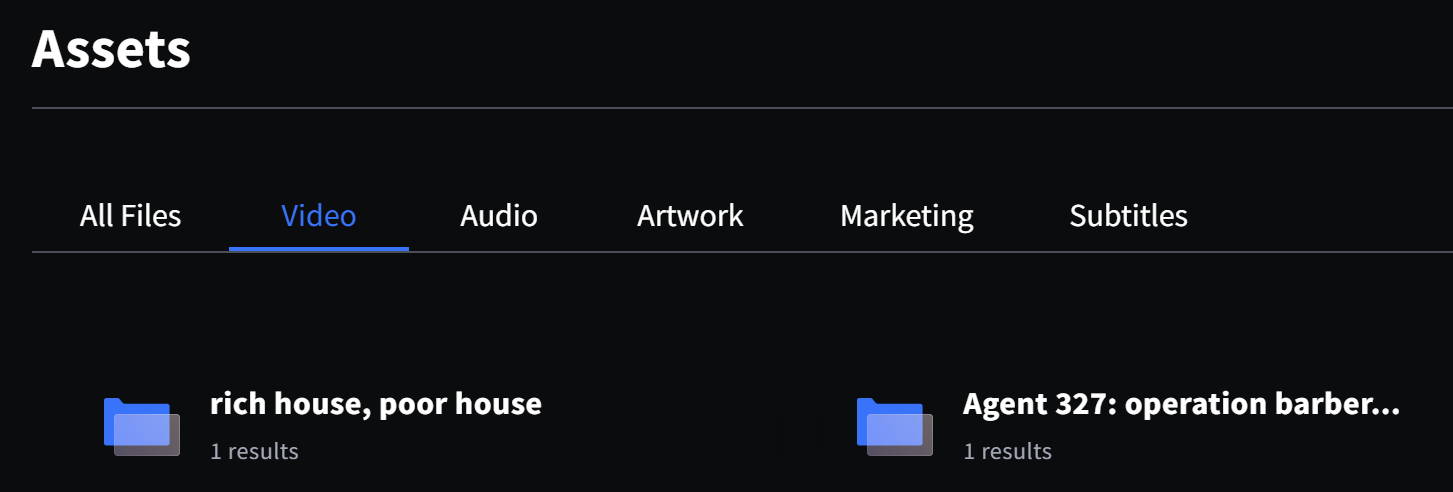
Connect 2 also offers filters, so you can narrow down the assets you're looking for within a tab or subfolder.
Step 3 — View and download assets
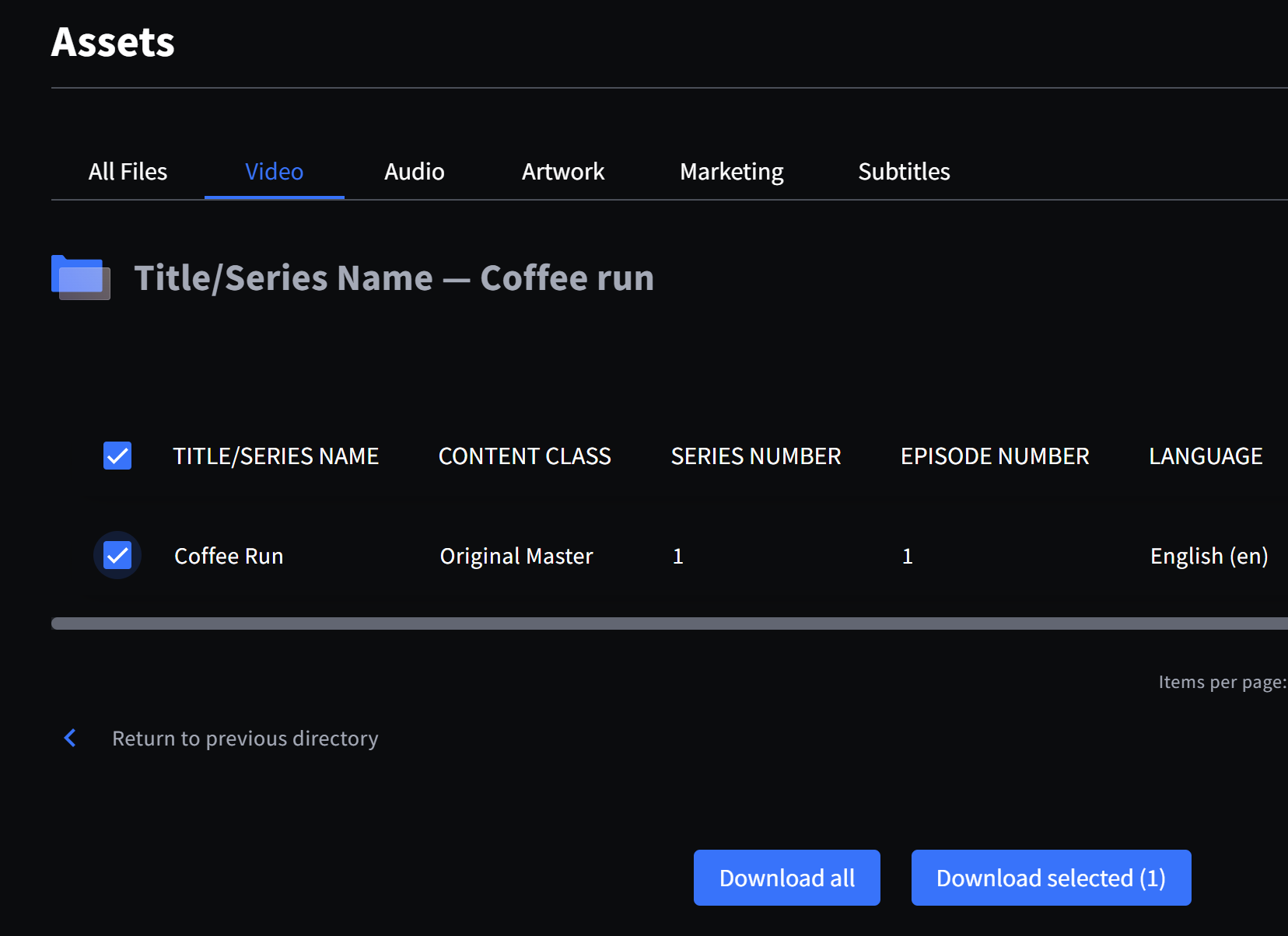
- Open an asset by clicking on it.
- Click Download All to grab everything in the folder.
- Or select one or multiple items, then choose Download Selected.
For large files or bulk downloads, you can also use IBM Aspera for Desktop. See Downloading Files using IBM Aspera for Desktop.
You're ready to browse and download your licensed content.
Troubleshooting & FAQs
See Logging in for the First Time. If you don't know the Connect 2 address for your content, contact your content provider.
Check that you're in the correct tab and subfolder, then use the available filters to narrow down the assets shown. You can also use the search bar to look for the package or title directly. If you still can't find it, contact your content provider.
Tabs and the asset types they contain are set up by the content owner, so they can vary between packages. If you believe a tab is missing, contact your content provider.
Yes. Select multiple items and choose Download Selected, or click Download All to download everything in the folder.
This is usually caused by one of the following:
- The rights contract covering this title or package has expired, ending your access.
- The rights contract includes a download limit, and that limit has been reached.
- The content owner has removed or replaced the asset.
Contact your content provider to check the status of your license or rights contract.
Was this article helpful?
That’s Great!
Thank you for your feedback
Sorry! We couldn't be helpful
Thank you for your feedback
Feedback sent
We appreciate your effort and will try to fix the article