Downloading Files using IBM Aspera for Desktop
Start a download using IBM Aspera for Desktop and troubleshoot common download issues.
Overview
IBM Aspera for Desktop provides a fast and reliable way to download files from VIDA and Connect 2.
This article explains how to start a download and troubleshoot common download issues.
Before You Begin
Before downloading files, ensure:
- IBM Aspera for Desktop is installed.
- Your browser permissions have been configured.
- The application is running.
If you haven't completed this setup yet, see Installing IBM Aspera for Desktop.
Step-by-Step Instructions
Downloading files from VIDA
- Open the email notification and click Download in VIDA.
- Log in to VIDA.
- To download all files, click Download all via Aspera – Recommended. To download files into folders instead, click the arrow next to the button and select Download all via Aspera in Folders.

- Alternatively, select the files you wish to download and click the Download all via Aspera or Download all via Aspera in Folders icon.

- IBM Aspera for Desktop launches automatically. Clicking the pop-up notification will also open it.
 If it doesn't open automatically, look for the IBM Aspera for Desktop icon in your notification area — the bottom-right corner of your screen on Windows, or the top-right corner on Mac.

- Monitor progress in the Transfer Activity window.
Troubleshooting & FAQs
If your download does not start, the most common cause is that IBM Aspera for Desktop has not been installed or your browser permissions have not been configured correctly.
Review Installing IBM Aspera for Desktop, paying particular attention to:
- Browser permissions.
- Apps on Device (Google Chrome).
- Allowing your browser to communicate with IBM Aspera for Desktop.
If you've confirmed your setup is correct and the issue persists, please contact your System Administrator or the VIDA Support Team.
Chrome won't show the prompt again on its own. To get it back:
- Select the Site Settings icon next to the address bar.
- Find Apps on device and select Reset permission.
- Refresh the page and start a new download — the prompt will appear again.
Resetting Apps on device is what brings the prompt back — Chrome only asks about IBM Aspera for Desktop while that permission is allowed.
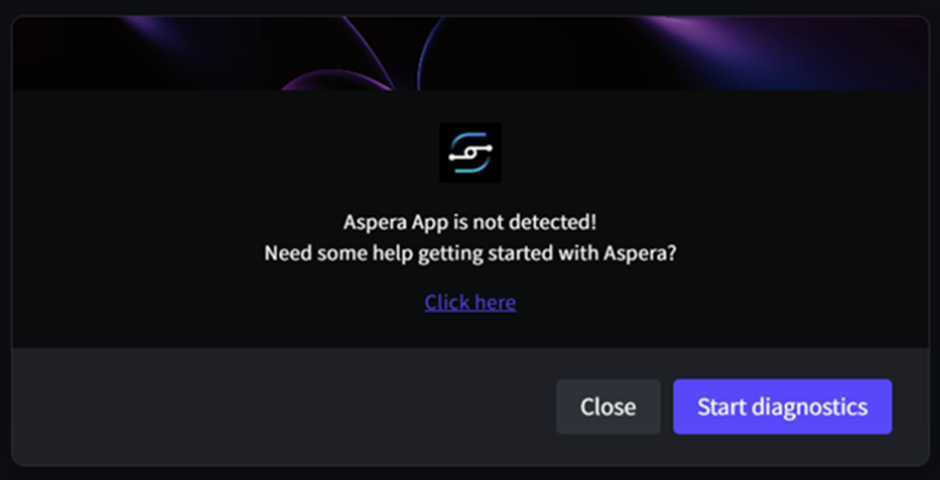
This message indicates that your browser is unable to communicate with IBM Aspera for Desktop. In most cases, this is caused by missing browser permissions or an incomplete Aspera installation.
Review Installing IBM Aspera for Desktop to ensure:
- IBM Aspera for Desktop is installed.
- The application is running.
- Browser permissions have been granted.
- Apps on Device is enabled (Google Chrome).
If the issue continues after completing these checks, please contact the VIDA Support Team.
Check that:
- Your internet connection is stable.
- The destination drive is available.
- You have permission to save files to the selected location.
Cancelling and restarting the download often resolves the issue.
Yes. You can download multiple files simultaneously using IBM Aspera for Desktop.
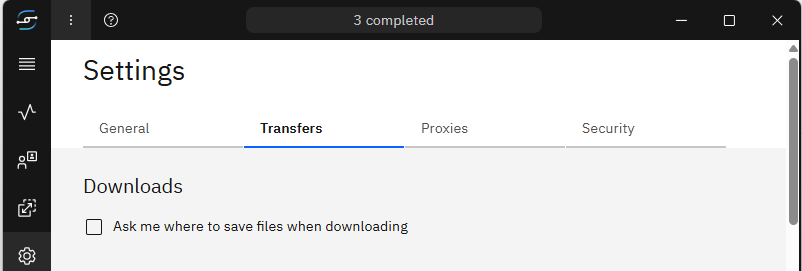
By default, downloads are saved to the folder configured in IBM Aspera for Desktop.
If you cannot locate your files, check your Aspera download location:
- Click the three-dot icon next to the Aspera for Desktop logo.
- Go to the Transfers tab.
- Choose a new location, or tick Ask me where to save files when downloading.
Download all via Aspera downloads all selected files into a single download location.
Download all via Aspera in Folders organises downloaded files into folders using a structure configured specifically for your organisation. The structure is based on the metadata associated with each asset and is set up by the VIDA team to meet your organisation's requirements.
If the issue continues, please contact your System Administrator or the VIDA Support Team and include:
- A full screenshot showing the issue.
- A screenshot of the Transfer Activity window.
- Your browser and version.
- Your operating system.
- The file name and approximate size.
- The date, time and timezone when the issue occurred.
Was this article helpful?
That’s Great!
Thank you for your feedback
Sorry! We couldn't be helpful
Thank you for your feedback
Feedback sent
We appreciate your effort and will try to fix the article