Searching for Assets
Quickly locate assets using Home Page Search, Search Assets, and Advanced Filters.
Overview
VIDA provides several ways to search for assets, allowing you to perform quick searches, targeted searches, or refine your results using Advanced Filters.
This article explains the different search tools available and how to use them effectively to quickly locate assets for viewing, downloading, adding to collections, or including in packages.
Search Tools
VIDA provides several ways to search for assets, depending on the information you already have.
- Home Page Search — best when you know a specific identifier, such as a Keyword, Filename, UUID, or Transcription.
- Search Assets — performs a broad search across multiple asset fields when you don't know exactly what information you have.
- Advanced Filters — helps you narrow your search results using specific asset information and metadata.
These search tools work together to help you quickly locate the assets you're looking for.
Home Page Search
The search bar on the VIDA Home page provides a quick way to search your Assets library.

Enter a search term and press Enter to open the Assets page with the matching search results.
If you already know the type of information you're searching for, select a specific search type, such as Keyword, Filename, or UUID. VIDA will then search only within the selected field, helping you quickly locate the assets you're looking for.
Search Assets
Use the Search Assets bar at the top of the Assets page to search across your Assets library.
Unlike the Home Page Search, the Search Assets bar searches across multiple asset fields automatically, making it ideal when you don't know exactly which piece of information you have.
This search is specific to the Assets page and does not search Quarantine or Deleted Assets.

Advanced Filters
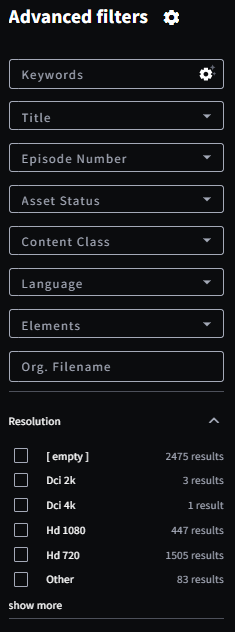
Advanced Filters allow you to refine your search using specific asset information, such as Title, Facility of Origin, Series Number, Asset Type, or technical metadata such as Video Codec and Audio Codec.
The more filters you apply, the more specific your search results become. As filters are selected, both the available filter options and the search results update automatically to reflect your current search criteria, helping you quickly narrow down your results.
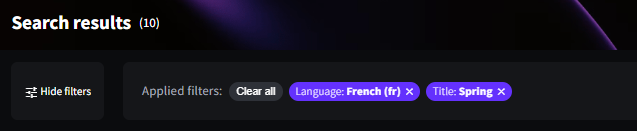
The Search Results heading displays the number of assets matching your current search. As filters are applied or removed, the number of matching assets updates automatically.
Applied filters are displayed above the search results, making it easy to see which filters are currently active. To remove an individual filter, click the remove icon next to it. To remove all applied filters and reset your search, click Clear all.
If you'd like more space to review your search results, click Hide filters beneath the Search Results heading. You can display the filter panel again at any time by selecting Show filters.
Select the cogwheel to customise your Advanced Filters. Use the checkboxes to enable or disable filters and drag and drop them into the order that works best for you. Your filter layout is saved automatically, so you only need to configure it once.
Different filters display information in different ways depending on the type of information they contain. Some filters allow you to enter one or multiple values, while others provide predefined lists or simple options such as Yes or No.
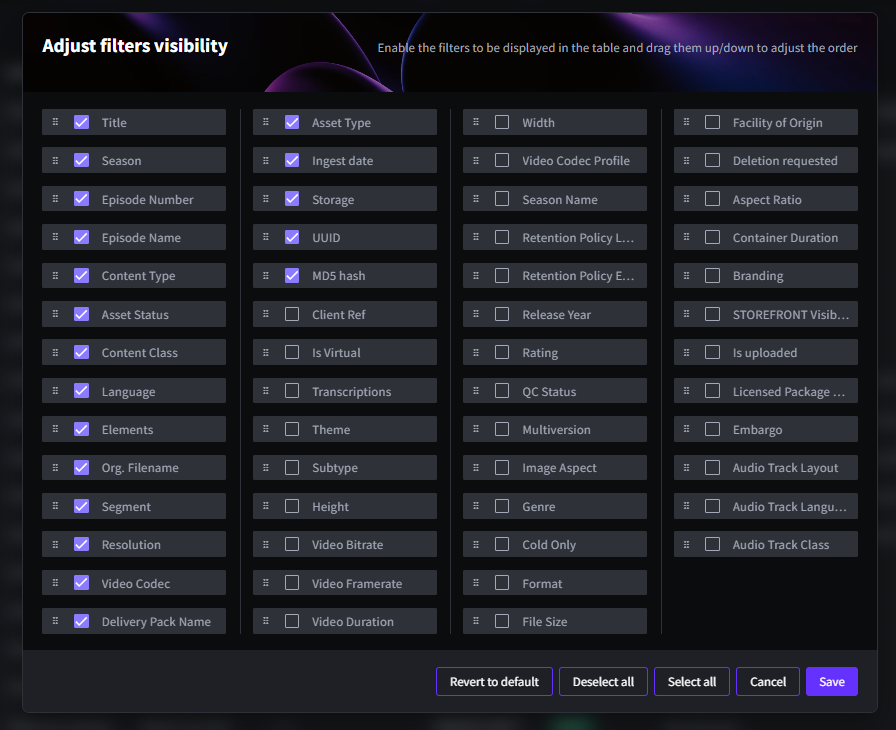
If your System admin makes a new filter available, it won't automatically appear in your filter layout. Open the cogwheel to enable the filter. If the filter doesn't appear immediately, we recommend refreshing the page.
Filter layouts are managed separately for each asset location. Enabling a filter in Assets does not automatically enable it in Quarantine or Deleted Assets. If you'd like to use the same filter across multiple asset locations, you'll need to enable it separately in each one.
Advanced Filters are available throughout VIDA, Launchpad and Connect 2, providing a consistent filtering experience across many pages and products.
Search Tips
If you can't find the asset you're looking for, try the following:
- Check that you're searching in the correct asset location, such as Assets, Quarantine, or Deleted Assets.
- Search using partial filenames, titles, or keywords if you don't know the full asset name.
- Use multiple filters to narrow your search results.
- Review any filters you've already applied, as one or more filters may be restricting your search results.
- Make sure there are no unintended spaces or special characters at the beginning or end of your search term.
- Clear all applied filters and try your search again.
- Try a different search method depending on the information you have available.
- Customise your filter layout to keep your most frequently used filters easily accessible.
Troubleshooting & FAQs
There are several reasons why an asset may not appear in your search results.
- Check that you're searching in the correct asset location.
- Make sure there are no unintended spaces or special characters at the beginning or end of your search term.
- Try searching using a partial filename, title, or keyword.
- Review any filters you've applied, as they may be restricting your results.
- If you know a specific identifier, such as a UUID or filename, consider using the Home Page Search and selecting the appropriate search type.
If your System admin has made a new filter available, you'll need to enable it yourself using the Advanced Filters cogwheel.
Once enabled, we recommend refreshing the page before using the filter.
Filter layouts are managed separately for each asset location. For example, enabling a filter in Assets does not automatically enable it in Quarantine or Deleted Assets. If you'd like to use the same filter in multiple asset locations, you'll need to enable it separately in each one.
If you have any questions or need assistance searching for assets in VIDA, please contact your System Admin/ Customer Success Manager or our Support Team. We're always happy to help.
Was this article helpful?
That’s Great!
Thank you for your feedback
Sorry! We couldn't be helpful
Thank you for your feedback
Feedback sent
We appreciate your effort and will try to fix the article