Find the files and packs that have been shared with you on the Downloads page, by name, asset, or the person who sent them.
Overview
The Downloads page lists the packs of files that other people have shared with you. Each row is one pack, with its status, who shared it, and when it expires.
This article explains how to search the list, what each column means, and what to check when a pack you expect is missing.
Searching and Sorting
Search
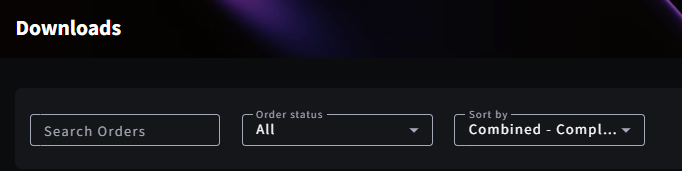
Type in the Search Orders box at the top of the page. VIDA looks across everything on a pack, not just its title. A single search can match:
- Pack details — the package title, purchase order number, department, and any comment.
- People — the name or email address of whoever shared the pack.
- Files in the pack — the filename or title of an asset included in the pack.
Filter and sort
Next to the search box there are two more controls:
- Order status — show only packs with a particular status, such as Ready For Download or Complete.
- Sort by — sort by created date or by status, newest or oldest first. Searching narrows the list but does not rank the results, so use Sort by to change the order.
Understanding the Columns
The table can show these columns. Use the cog icon at the right of the column headings to choose which ones you see.
| Column | What it shows |
|---|---|
| Order status | Where the pack is up to. Ready For Download means the files are available, Downloaded means some have been downloaded, Complete means they have all been downloaded, and Closed means the pack has expired. |
| Package Title | The title of the pack. Packs created with Fast Download have a generic title, such as "Fast Download - 50 Asset(s)" followed by the date and time. |
| Request name | A separate request name that some packs carry. It shows N/A when the pack has none. |
| Shared by, Shared with | Who sent the pack, and who it was sent to. |
| Number of assets | How many files the pack contains. |
| Delivery date, Expiry date, Created At | When the pack was delivered, when it expires, and when it was created. Download it before the expiry date. |
Troubleshooting & FAQs
There are a few things to check.
- Downloads lists packs sent to your own email address. If the sender used a different address, such as a colleague's or an older one, the pack will not appear. Ask them which address they used.
- Clear the search box and set Order status to All, in case a filter is hiding the pack.
- Try searching for a filename or the sender's email address instead of the title.
- Check for extra spaces or special characters at the start or end of your search.
Search also matches the files in a pack and the people involved, so the match may not be in the title. Packs created with Fast Download have a generic title, so search for a filename or the sender's name instead.
Closed means the pack has expired. Ask the sender to share the files again.
Downloads lists the packs other people have shared with you. The Orders page is for orders you place and manage. It has more filters, and its search works in a similar way. See Searching Orders for more.
If you have any questions or need assistance finding a download in VIDA, please contact your VIDA Administrator or our Support Team. We're always happy to help.
Was this article helpful?
That’s Great!
Thank you for your feedback
Sorry! We couldn't be helpful
Thank you for your feedback
Feedback sent
We appreciate your effort and will try to fix the article