Why is the Upload Button Blurred Out? (Aspera Not Running)
Fix a greyed-out upload button in Launchpad by getting IBM Aspera for Desktop running and connected to your browser.
Overview
If the upload button on your Launchpad package page appears greyed out or blurred, this means the IBM Aspera for Desktop app is not currently running or connected on your computer. Follow the steps below to resolve this.
Step-by-Step Instructions
Step 1 — Respond to the browser prompt
When you open or refresh a package page in Launchpad, your browser will automatically try to launch the Aspera app and display a prompt similar to this:
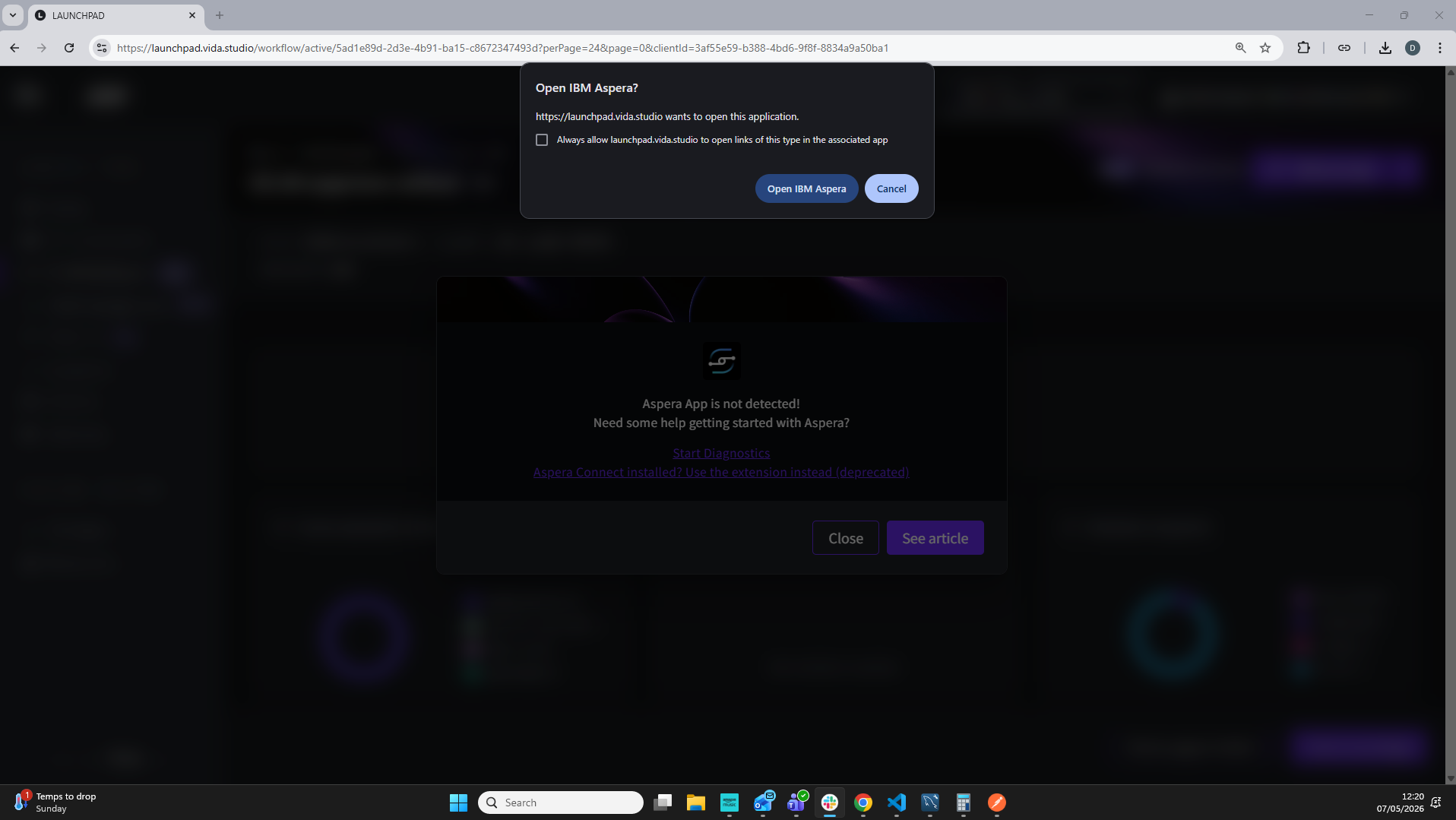
- Click Open IBM Aspera to launch the app. The upload button will become active once Aspera is running.
- If you click Cancel, the Aspera app will not start and the upload button will remain unavailable — see Step 2 below.
If your browser offers an Always allow or Remember my choice option, tick it so you are not prompted on every visit.
Step 2 — If you clicked Cancel
Chrome won't show the prompt again on its own once you cancel it. To get it back:
- Select the Site Settings icon next to the address bar.
- Find Apps on device and select Reset permission.
- Refresh the page — the prompt will appear again, ready for you to select Open IBM Aspera.
Resetting Apps on device is what brings the prompt back — Chrome only asks about IBM Aspera for Desktop while that permission is allowed.
Step 3 — If Aspera isn't installed
If Aspera for Desktop is not installed on your computer, you will see a dialog on your package page indicating Aspera is not detected.
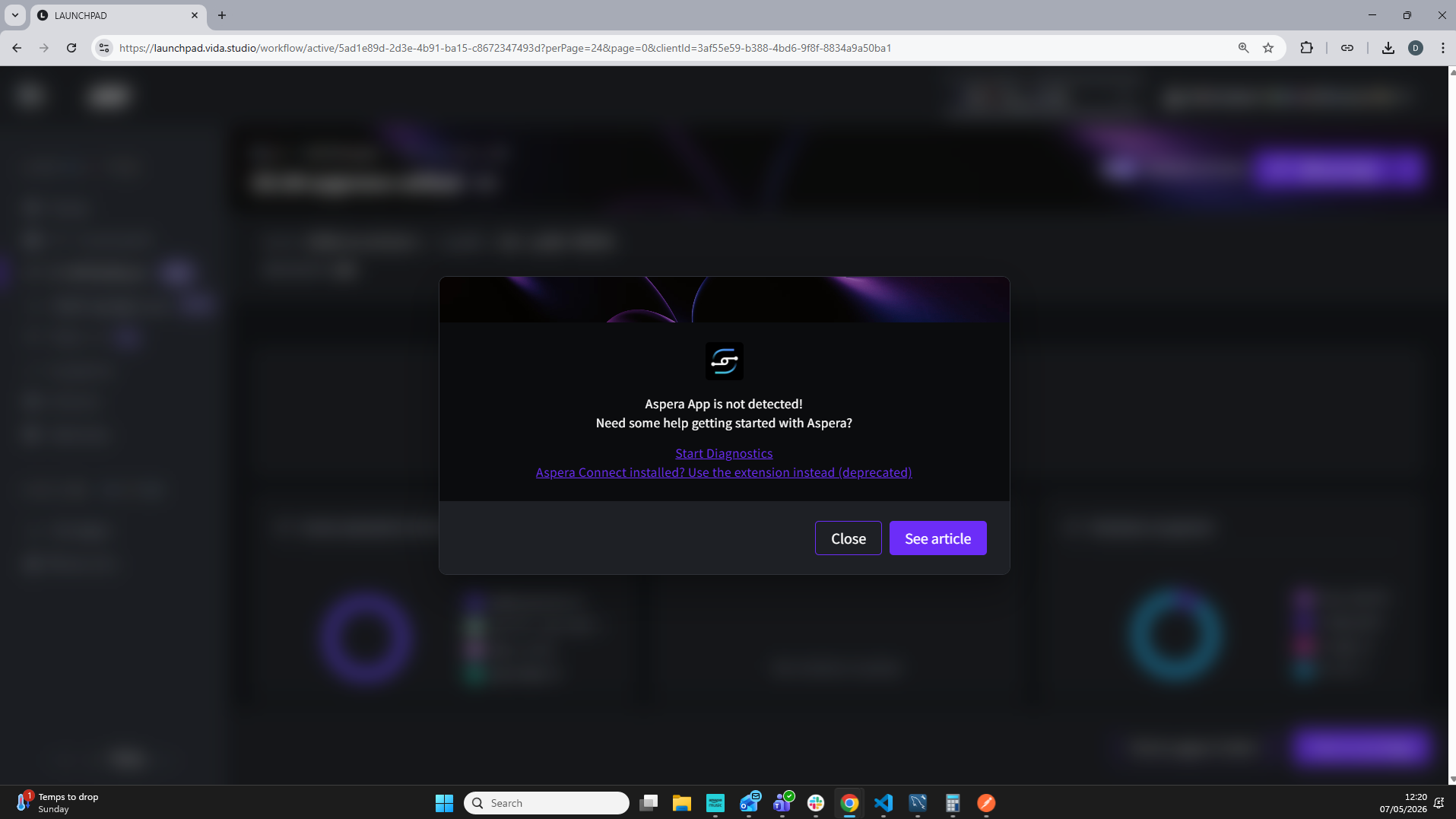
To resolve this, install IBM Aspera for Desktop by following our guide: Uploading files with the Aspera for Desktop App. Once installed, refresh the page and click Open IBM Aspera when prompted (Step 1).
Troubleshooting & FAQs
On the "Aspera not detected" screen you may notice a link that reads "Aspera Connect installed? Use the extension instead (deprecated)". We strongly recommend you do not use this option. Support for the Aspera Connect browser extension is being removed from Launchpad. If you choose it, you will see a deprecation warning:
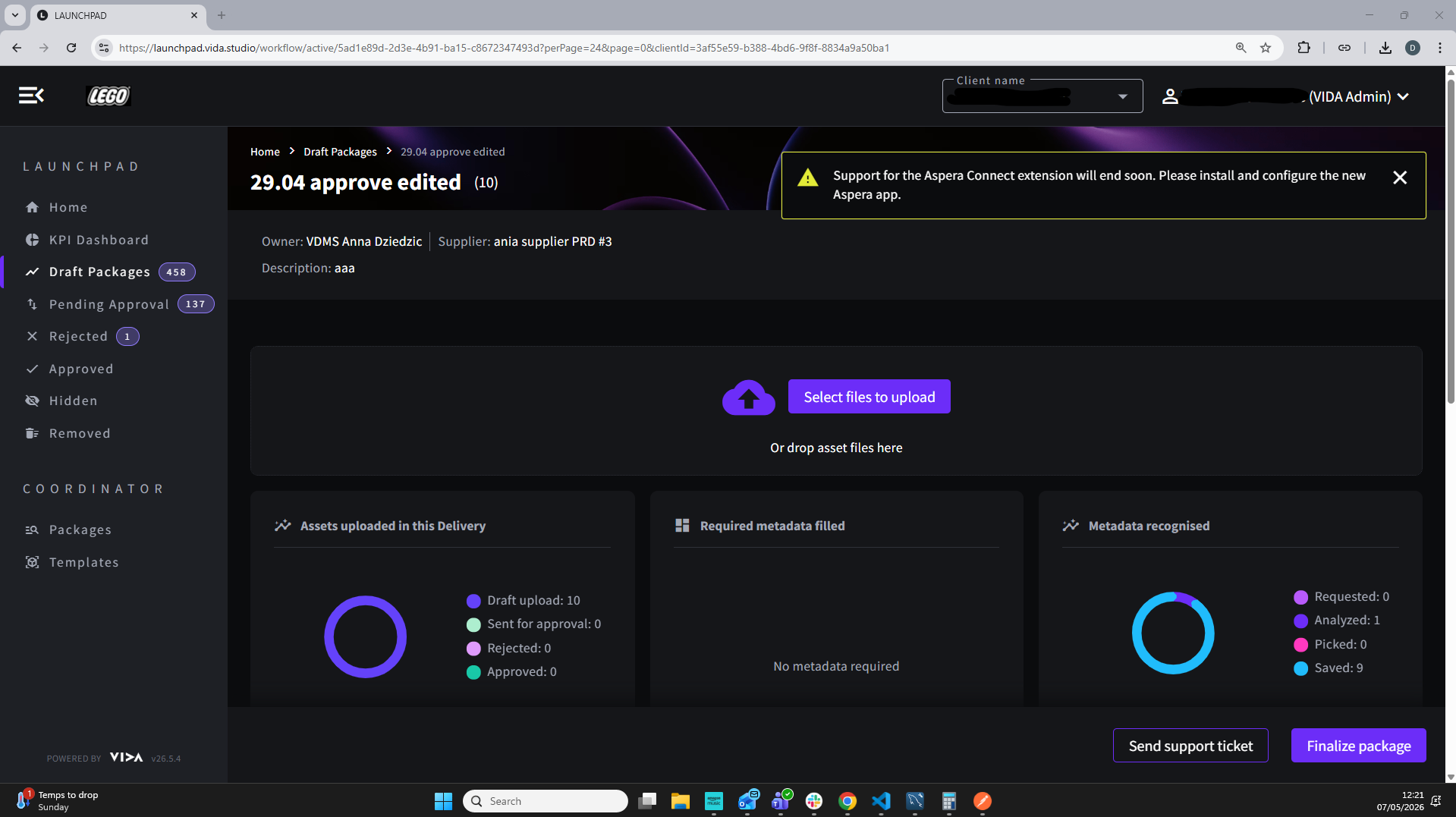
You will also be prompted to choose between the app and the extension on every page refresh. Switching to the Aspera for Desktop app avoids this and ensures continued support.
Contact us at support@vida.studio — we are happy to help.
Related Articles
Was this article helpful?
That’s Great!
Thank you for your feedback
Sorry! We couldn't be helpful
Thank you for your feedback
Feedback sent
We appreciate your effort and will try to fix the article