Launchpad: How to Use an Upload Template
Create a package from a template you've been assigned, to skip repetitive metadata entry on recurring deliveries.
Overview
An upload template speeds up recurring deliveries by presetting two things for you:
- Package-level metadata — fields such as Title or Season Number are already filled in.
- Object-based containers — placeholders are already set up for each type of file you need to deliver.
This means you only need to drop your files into the correct container; the associated metadata is applied automatically.
If a template has been assigned to you, we recommend using it. If you're ever unsure which option is right for your delivery, check with the recipient before creating your package.
You can always create a simple package instead of using a template. A simple package doesn't set any metadata in advance, so you'll need to add the required metadata yourself once your files have been uploaded — see Launchpad: How to Update Metadata.
Before You Begin
A template must be assigned to you before you can select it. Only a Launchpad Coordinator can assign templates. If you don't see the template you're expecting, contact your Launchpad Coordinator.
Step-by-Step Instructions
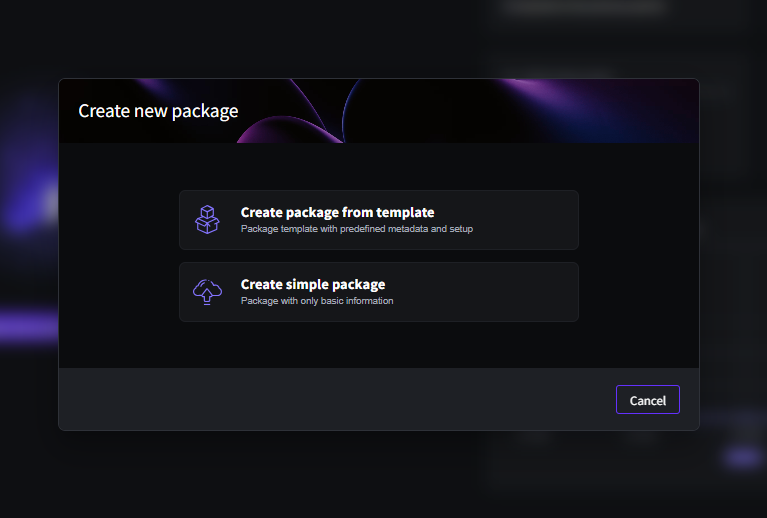
- Click Create new upload package.
- Choose Create package from template.
- Select the required template from the drop-down menu. The package instructions for that template will appear.
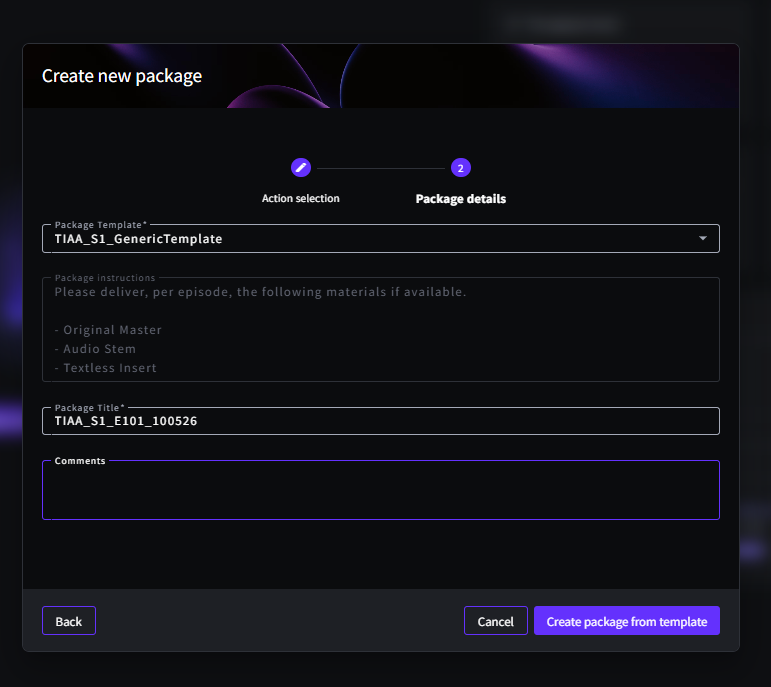
Templates often carry a generic Package Title. Before continuing, update the Package Title field — for example, by adding the ingest date — so each delivery is easy to identify later. General comments about the whole package can also be added here.
For comments about one specific asset, use the Notes field on that asset instead of the package-level instructions.
- Click Create package from template to continue.
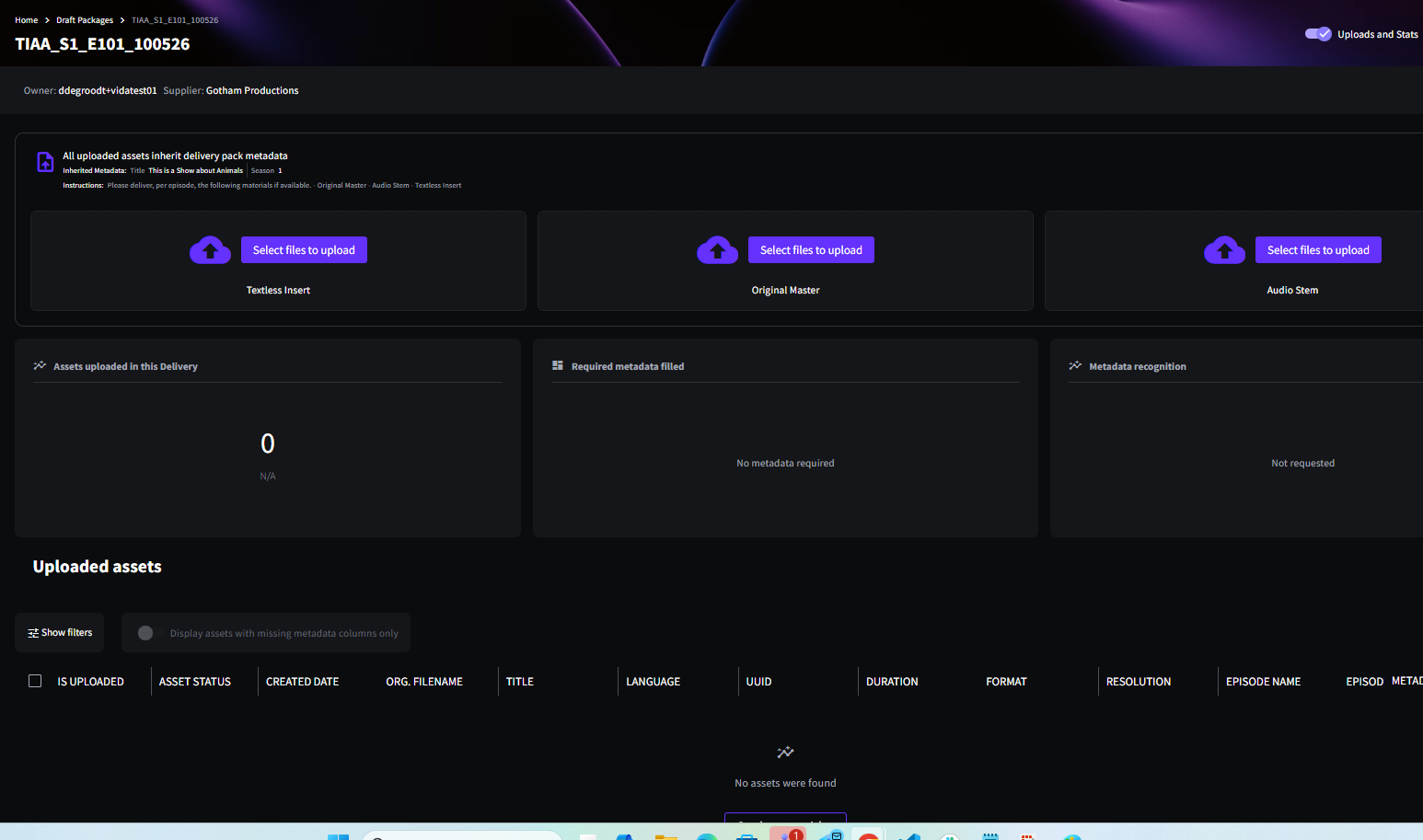
- Start uploading your files, dropping each one into the correct container. You don't need to fill every container — only drop files into the ones that apply to your delivery.
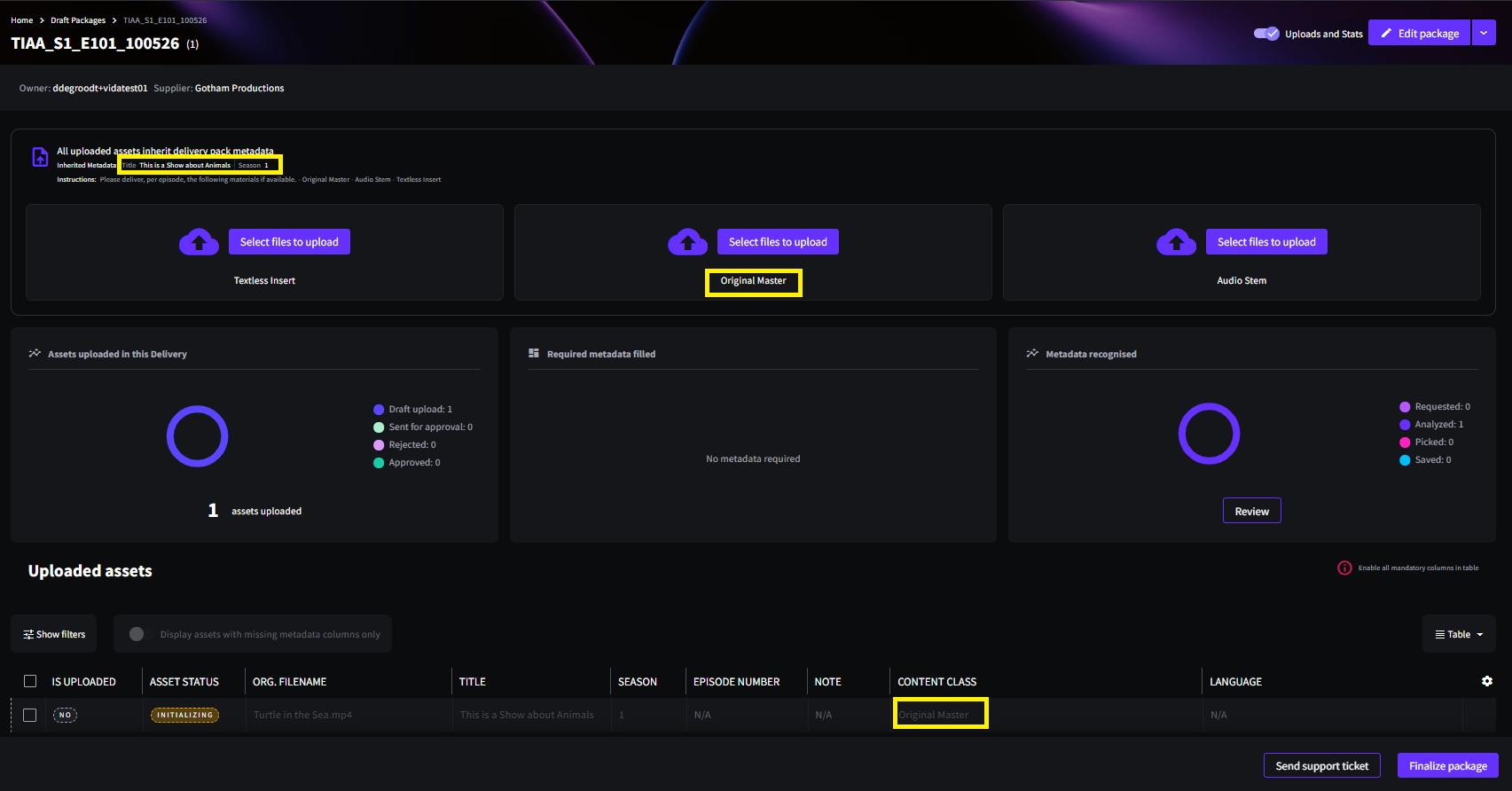
If any metadata still needs to be added or corrected once your files are uploaded, you can update it directly on the asset:
- Single Asset Update — edit metadata for one asset at a time.
- Batch Update — apply the same value across multiple selected assets at once.
See Launchpad: How to Update Metadata for full instructions on both methods.
Once all your files have been dropped into their containers and any remaining metadata has been updated, click Finalize to complete the package.
Your files are delivered with the template's preset metadata already applied. Next time you need to make a similar delivery, select the same template and upload your files the same way.
Troubleshooting & FAQs
Templates only appear once they've been assigned to you. Only a Launchpad Coordinator can assign a template, so contact them to confirm you've been given access.
No. Only drop files into the containers that apply to your delivery — empty containers are simply left unused.
Use the Notes field on that individual asset. The Package Title window is intended for general comments about the whole delivery, not asset-specific notes.
Reach out to the person the delivery is intended for and ask for clarification.
Alternatively, upload the file into one of the existing containers and leave a note explaining this on the asset, by adding a comment to the Notes field via Single Asset Update.
Yes. Select the same template again next time you need to make a similar delivery, and upload your files the same way.
No, but if a template has been assigned to you, we recommend using it. If you're ever unsure which option to use, check with the recipient before creating your package.
You can always create a simple package instead. Unlike a template, a simple package doesn't set any metadata in advance, so you'll need to add the required metadata yourself once your files are uploaded.
Related Articles
Was this article helpful?
That’s Great!
Thank you for your feedback
Sorry! We couldn't be helpful
Thank you for your feedback
Feedback sent
We appreciate your effort and will try to fix the article